

- Fewer repeated mistakes. An agent that hit a tricky build command, an unusual repository layout or a flaky tool learns the workaround once and uses it from then on.
- Your team’s conventions, picked up over time. Lessons come from your own runs, so they reflect how your team works.
- Lessons that stay useful. Memories that help keep their place. Memories that stop helping fade out, so agents aren’t distracted by stale advice.
- A clear list of what to fix. Problems a memory can’t solve are listed for you to act on.
Turn on Self improvements
Self improvements are turned on for the whole workspace, and work with or without Continuous Intelligence.Open Measure & Improve
In the workspace sidebar, under Governance & admin, select Measure & Improve.
Turn it on
In Self improvements, turn on Use Self improvements.
Optionally choose the hours
To keep reviews out of working hours, turn on Run only during selected hours and choose From and To, for example 22:00 to 06:00. Hours use the workspace timezone.
Save
Select Save changes.
See what it’s doing
Each workflow has a Self improvements panel on its Overview, in the Improve section. When Continuous Intelligence is on, it also appears on the Improve tab, next to the Memories panel.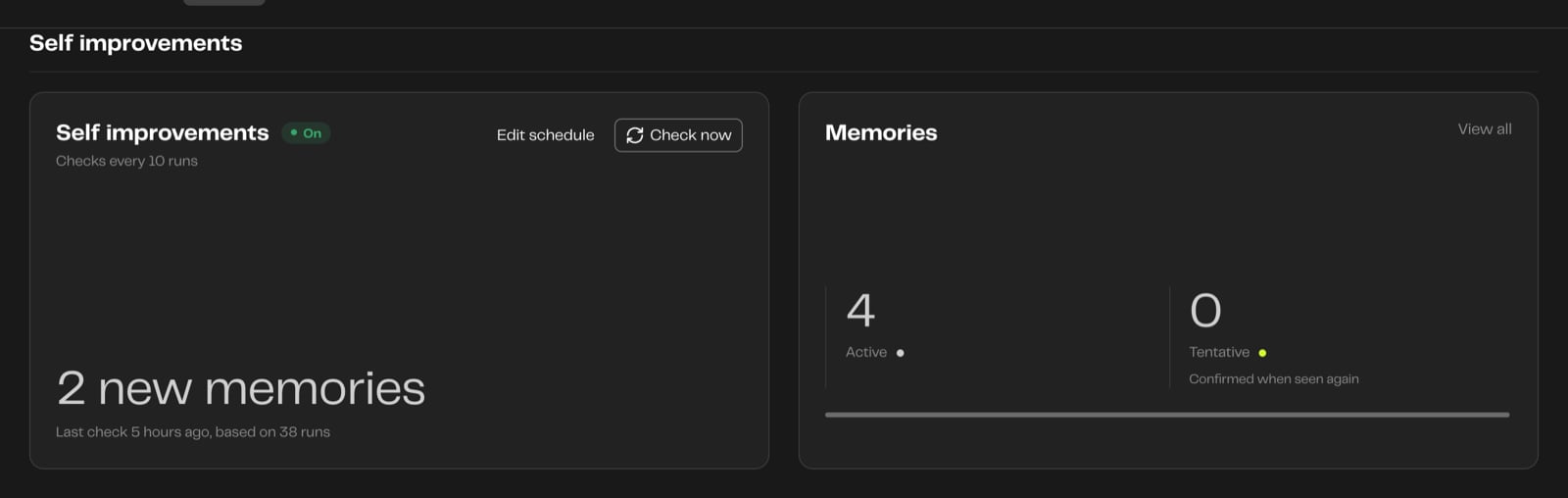
The Self improvements and Memories panels.
Select View run to open the latest review and read its report: which runs it looked at, what it learned, what changed, and the fixes to consider.
How it works
Runs pile up
After a set number of runs finish, 10 by default, Overcut starts a review.
Overcut reviews the runs that matter most
It scans all of those runs for problems that keep coming back, then reads a few of them closely, starting with the ones that failed.
It saves lessons
A lesson seen in several runs becomes a memory agents use right away. A lesson seen once is kept as tentative until another run shows the same thing, or until you confirm it.
It keeps memories honest
Memories that help runs gain weight. Memories that mislead agents, or that agents keep ignoring, lose weight and are eventually archived. Memories the runs contradict are removed.
It tells you what to fix
Problems that need a person, such as an instruction that needs changing or a missing permission, appear in the report under Fixes to consider.
Review on demand
You don’t have to wait for the next scheduled review. Check now: select it on the Self improvements panel to review the workflow’s latest runs right away, for example after a release or a change to the workflow. It works like a scheduled review. Investigate: open a run that went wrong and select Investigate. Optionally add a Focus question (optional), such as “Why did this run fail at the deploy step?”. Overcut reviews that one run and opens the result. Because the evidence comes from a single run, new lessons start as tentative, and existing memories keep their weight. You can investigate as often as you like, even when Self improvements are off. You can also ask the assistant to review a workflow, or specific runs, with a focus question.Change how often a workflow is reviewed
Select Edit schedule on the panel to open Self improvements settings:- Run analysis after N executions: how many runs must finish before the next review. Default: 10. Lower it for workflows that run rarely, so they learn sooner.
- Sample size (0-1): how much of those runs to read closely. Default: 0.4. A review reads at most 5 runs closely.
Review and correct memories
You stay in control of what agents learn. On the workflow’s Memories tab, you can confirm a tentative memory, edit or delete one that’s wrong, and restore an archived one. See Workflow Memory.Usage
Reviews use the workspace default model. Each review is its own run, listed in the project’s runs as Self improvements, with its tokens. If you use your own model key, your provider bills the model usage.Related
- Workflow Memory: how agents use memories, and how to review them
- Workflow Improve Tab: see whether a change to a workflow helped
- Continuous Intelligence: measure what workflows deliver