

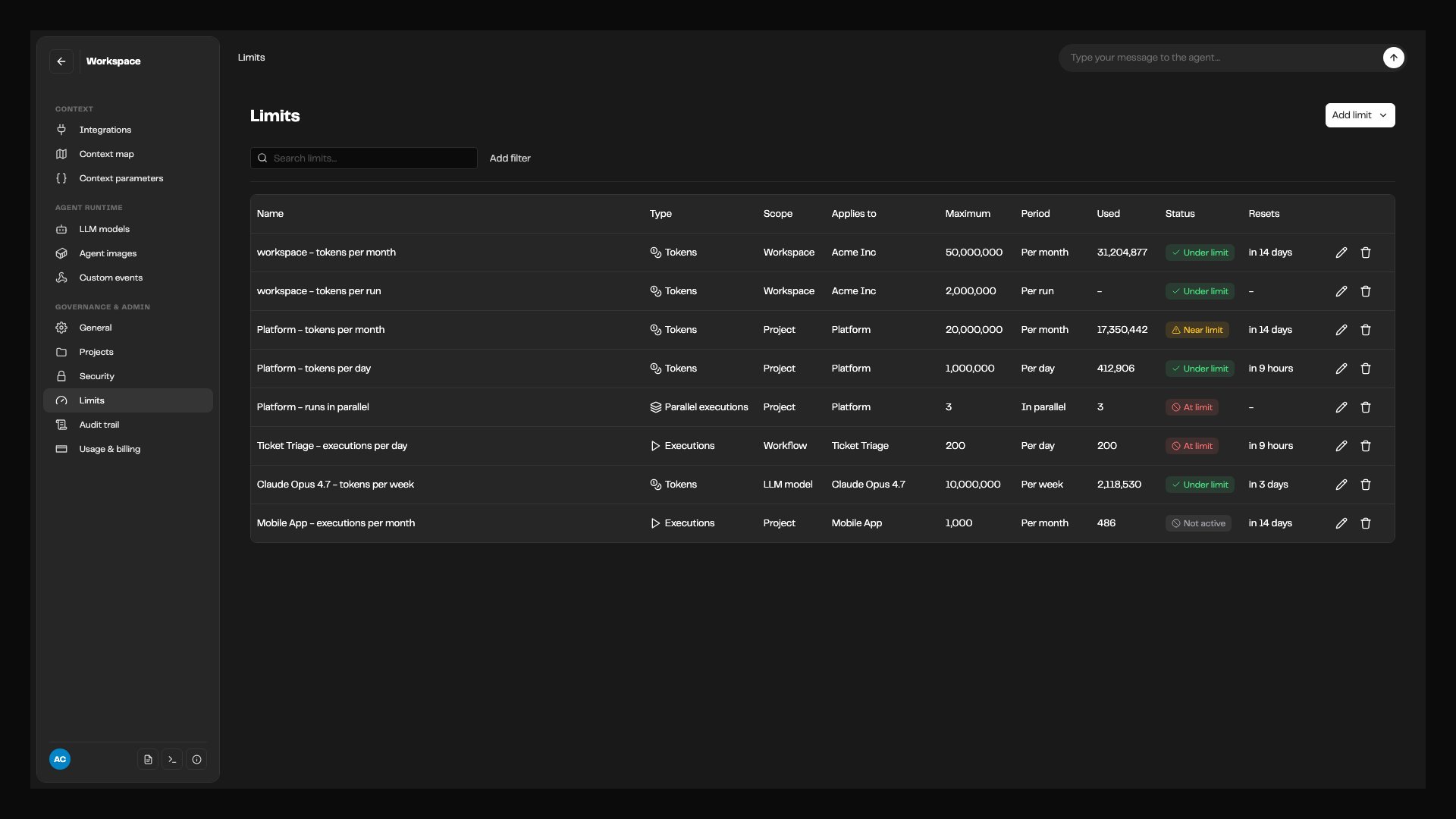
The Limits page lists every limit in the workspace, with its maximum, current usage, status, and when it resets.
What you can limit
Every limit counts one of three things:
A limit counts either over a time period (per day, per week, or per month) or for each run on its own. The combinations Overcut offers:
A few patterns these combinations support:
- A monthly budget per team. Give each team’s project a monthly token limit, so one team’s heavy month does not eat into another’s.
- A runaway guard on one workflow. A daily token or execution limit on a workflow contains a webhook storm or a trigger loop without starving the rest of its project.
- A cap on any single run. A per-run token limit on the workspace stops any run, in any project, that grows far beyond what a run of that kind should cost.
- A budget per model. A monthly token limit on an expensive LLM model caps its spend while cheaper models stay available.
- A fair share of capacity. A parallel limit on a project keeps it from taking every slot your plan allows.
The workspace-wide limit on parallel runs comes from your subscription plan, not from this page. It is not listed on the Limits page. See Workspace-level Concurrency Limits.
How limits combine
Every limit that covers a run applies, and the tightest one wins. A run of a workflow is covered by the workspace’s limits, its project’s limits, and the workflow’s own. A narrower limit can tighten a wider one but cannot loosen it: a project limit of 50M tokens a month does not let that project spend past a workspace limit of 20M. One subject can have several windows. A project can have both 1M tokens per day and 20M tokens per month. The daily limit guards against a burst, and the monthly limit sets the budget. Each window counts and resets on its own. Windows follow your workspace timezone. A day runs midnight to midnight, a week runs Sunday to Sunday, and a month runs from the 1st to the 1st, all in the timezone set in Workspace Settings. Reset times on the Limits page and in run messages use that timezone. A new limit starts counting from when you create it. Usage from earlier in the current window does not count toward it.What happens when a limit is reached
What Overcut does depends on the kind of limit and on whether the run has already started:
Every one of these runs carries a message that names the limit, how much is used, and when it resets. For example:
This run was stopped by a usage limit. Project Core Platform has used 20,000,000 of 20,000,000 tokens, resets 2026-11-01. Trigger it again once there is room, or raise the limit.When several limits are full at once, a run that never started names all of them, so you know everything you would need to raise for it to run.
Runs on hold
A run held by a project’s parallel limit keeps its trigger payload, so nothing is lost and you do not need to trigger it again. Its message reads, for example, “Project Core Platform has 3 of 3 runs going. This run will start when one finishes.” Held runs are released oldest first, and only when both the project’s limit and your plan’s workspace limit have room. See On Hold Release Cycle.Runs stopped partway through
A run stopped by a token limit is not cut off mid-step. Agent steps finish the operation they are on, steps that have not started are canceled, and anything still running after a few minutes is stopped. Work the run finished before the stop, and the tokens it spent, still count. How close a run gets to its limit before it stops depends on the agent engine. With the Overcut engine, usage is reported after every LLM call, so a run stops within about one call of the limit. With the Claude engine, usage is reported when each agent step finishes, so a run can pass the limit by up to one step’s worth of tokens before it stops. See Execution Engines.LLM model limits
Overcut does not know which models a run will call before it starts, so a model’s token limit is not checked when a run is triggered. It is checked each time a run calls that model. A run that calls a model whose limit is full is stopped at that point.Runs that limits never stop
- Orchestration supervisor runs are exempt from usage limits, so a supervisor can always escalate a work item to a person. See Orchestrations.
- If Overcut cannot check a limit, the run goes ahead. A failed check never stops your whole workspace. On the Limits page, usage that cannot be read shows as Usage unavailable rather than as zero.
View limits
The Limits page lists every limit in the workspace in one table:
Each limit shows one of these statuses:
Use Search limits and the filters above the table to narrow a long list, for example to every limit that is At limit.
Limits on a project or workflow
To see the limits for one project, open Project settings and select the Limits tab. For one workflow, open the workflow and select its Limits tab, next to History. These tabs list only the limits set on that project or workflow. Turn on Include parent limits to also see the limits that apply from above: the workspace’s limits, and for a workflow, its project’s limits too. Parent limits are shown read-only here. To change one, use the workspace Limits page, where you can see everything it affects.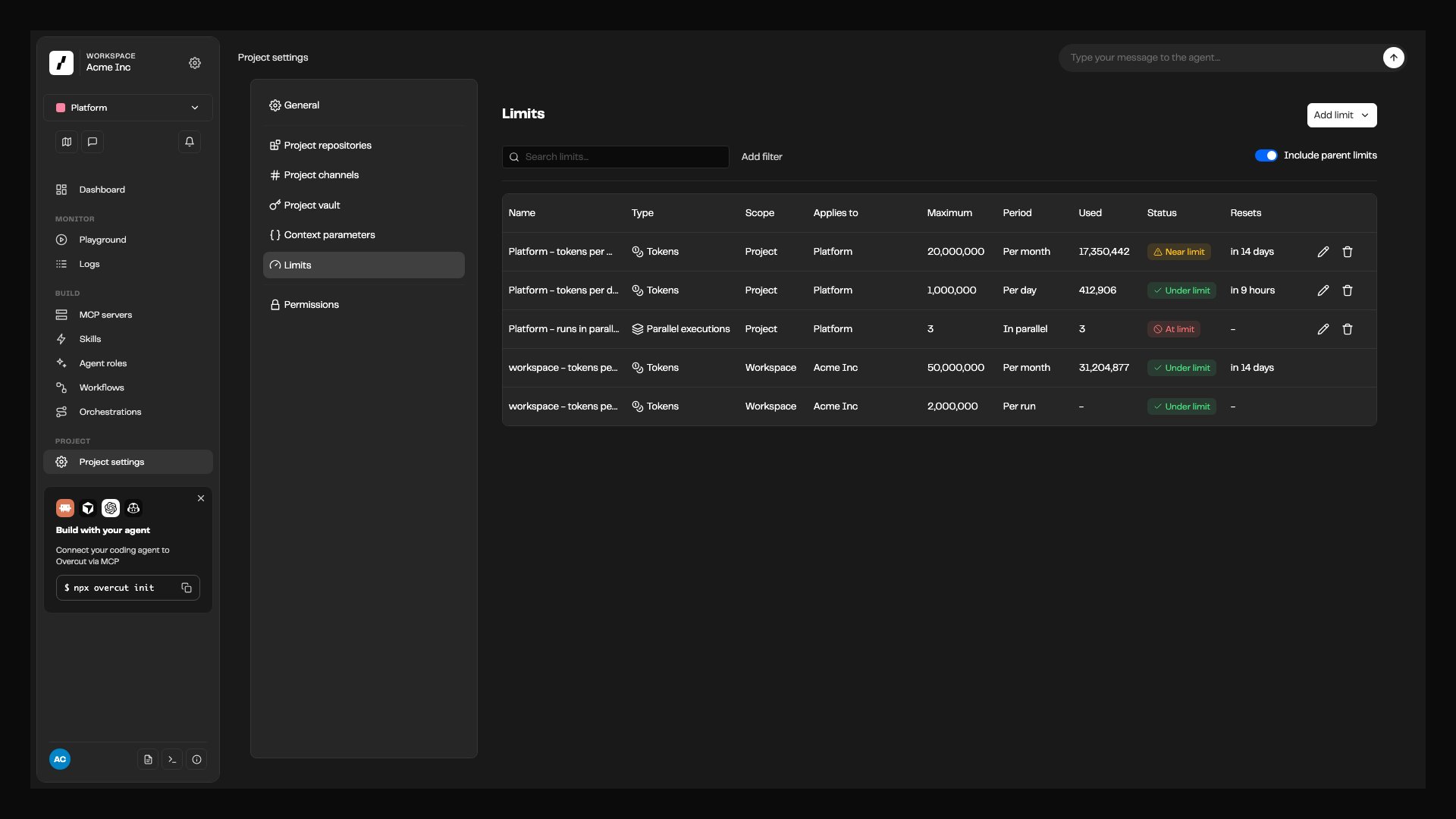
A project's Limits tab with Include parent limits on. The project's own limits can be edited here; the workspace limits above it are read-only.
Add a limit
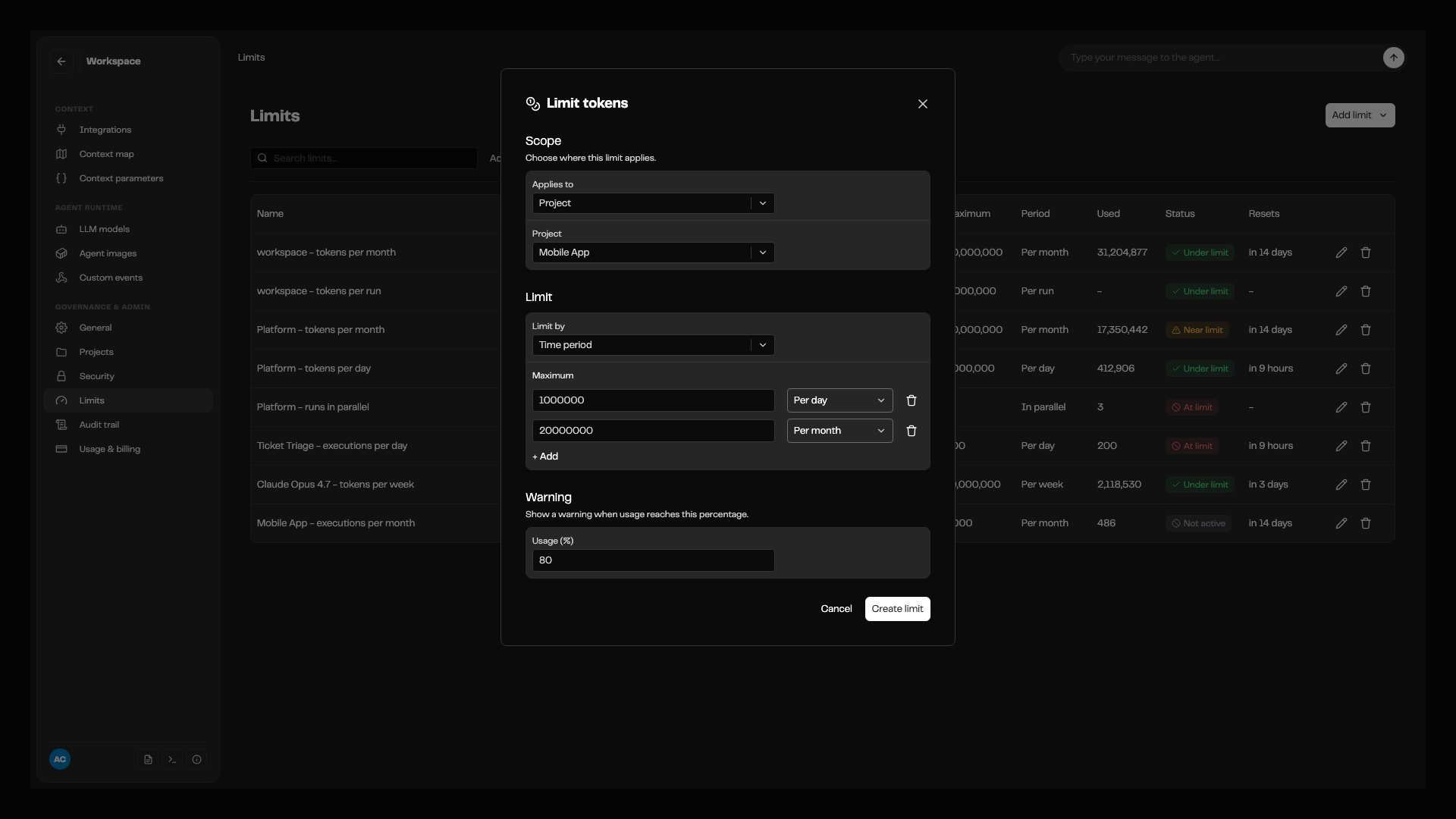
Adding a token limit to a project, with a daily maximum next to a monthly one and a warning at 80% of usage.
Choose what to limit
On the Limits page, select Add limit, then choose Limit tokens, Limit executions, or Limit parallel executions.
Choose where it applies
Under Scope, set Applies to: the workspace, a project, a workflow, or an LLM model, depending on what the kind of limit allows. Then pick the project, workflow, or model. Only models connected to your workspace are listed.
Set the maximum
For tokens, choose Limit by: Time period to count over a day, week, or month, or Each run to cap a single run. Enter the Maximum. To add another window to the same limit, such as a daily maximum next to a monthly one, select + Add.
Set a warning (optional)
For a limit over a time period, enter a Usage (%) under Warning, between 1 and 99. When usage passes that percentage, the limit shows as Near limit.
Save
Select Create limit. The limit takes effect on the next run it covers.
The warning percentage only changes how the limit is shown on the Limits page. Overcut does not send emails or other notifications when a limit is near or reached.
Overlapping limits
The form warns you when a number you enter can never take effect, and still lets you save. This happens when:- A narrower window is set at or above a wider one on the same subject. A daily limit of 30M next to a monthly limit of 20M can never be reached, because the monthly limit always stops runs first.
- A limit is set above a limit on a scope that contains it. A project limit of 50M tokens a month has no effect under a workspace limit of 20M a month.
Edit, turn off, or remove a limit
Select the edit icon on a limit’s row to open Edit limit. You can change the maximum, the warning percentage, the name (Limit name), and whether the limit is on (This limit is on). Save with Save limit. What a limit applies to and what it counts cannot be changed after it is created. To limit something else, add a new limit and remove the old one. Raising a full limit, or turning it off, lets new runs start right away. It does not restart runs that were already refused; trigger those again. To delete a limit, select the remove icon on its row and confirm Remove this limit?.Permissions
The Admins role has both. Other roles do not have them until you grant them under Security > Roles, since how much a workspace spends is usually an administrative concern. The Limits entry is always visible in the sidebar.
Every change to a limit is recorded in the Audit Trail under the Usage limit entity type, with the before and after values.
Related
- Token Usage Analytics: see where tokens go before you decide where to cap them.
- Workflow Execution Control: queuing, locking, and your plan’s limit on parallel runs.
- Audit Trail: review who changed a limit and when.
- LLM Models: the models you can budget per model.
- Multi-Project Workspaces: how projects divide a workspace between teams.