

SKILL.md-formatted skills straight from your connected code repositories or from a skills marketplace. No rewriting or re-authoring required.
What Agent Skills are
A skill is a reusable set of instructions stored in one of your connected repositories. After you add a skill to a project, it can be assigned to that project’s agents. A skill added to the Workspace Library can be assigned to agents in every project. Skills are useful when you want to:- Reuse team standards without copying the same instructions into multiple agents
- Keep guidance close to the repository or codebase it supports
- Give agents focused expertise for specific frameworks, services, or workflows
- Maintain one list of approved skills per project, or one shared list in the Workspace Library
Discover skills from connected repositories
Overcut shows available skills from repositories that are connected to your workspace. This gives your team a single place to find reusable guidance that is already packaged in the repositories you use every day.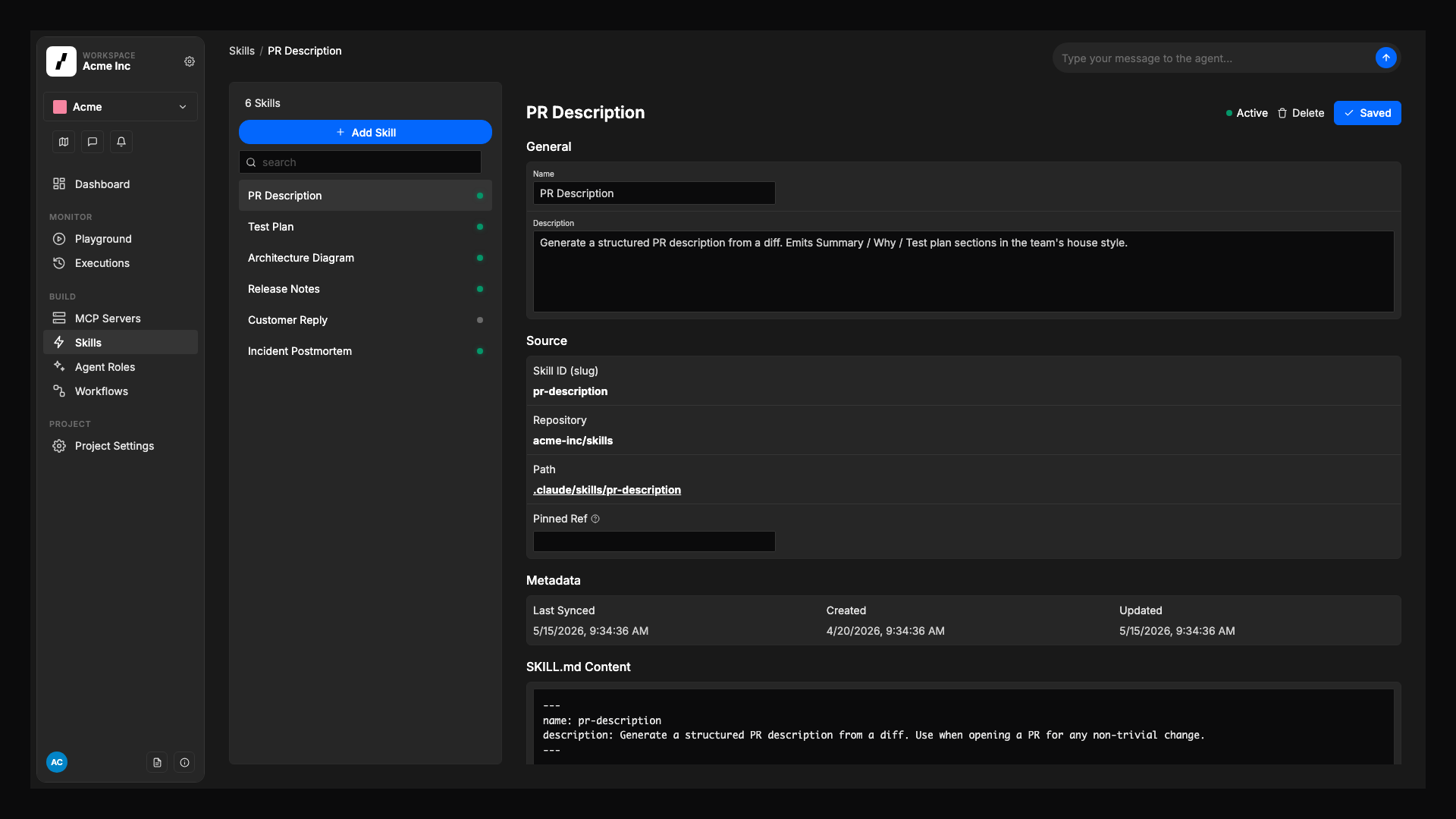
1
Open the Skills area
In your project, go to Skills to view the project-level list of registered skills and discover new ones.
2
Open Add Skills from Repository
Select Add Skill to open Add Skills from Repository, where you can browse skills from your connected repositories.
3
Choose a connected repository
In Search, use Repository to choose the repository that contains the skills you want to use.
4
Scan for repository skills
Select Scan for skills. Overcut checks the selected repository and shows discovered skills in Results.
5
Select one or more skills
Use Select Skills to choose the skills you want to add. You can add one skill or multiple skills in the same flow.
Overcut hides skills that are already added to the project, so you cannot add duplicates. If every discovered skill is already in the project, the Results area tells you so.
Preview a skill before adding it
Before you register a skill in the project, you can preview its instructions to confirm that it matches your team’s needs. When you open a skill preview, you can review:- The skill name
- The connected repository it comes from
- The repository path for the skill
- The skill instructions from
SKILL.md
Add one or more skills to the project
Once you find skills you want to use, add them to the project’s Skills area. This creates a shared project-level list that your team can review and manage over time.1
Review selected skills
Use Skill Details to confirm the selected skills are the right fit for the project before you add them.
2
Add the selected skills
Select Add Skill when one skill is selected. When more than one skill is selected, the primary action changes to Add N Skills.
3
Review the project Skills list
After you add multiple skills, Overcut returns you to the project Skills list. Use the list to review the saved skills and check where each skill comes from, including its connected repository, source path, and any pinned reference if one is shown.
Enable, disable, and remove skills
You can manage each project skill without editing the source repository directly.Enable
Keep a skill available for assignment to agents when your team wants to use it.
Disable
Temporarily prevent a skill from being assigned while keeping it in the project list for later use.
Remove
Delete a skill from the project’s Skills area when it is no longer needed.
Assign skills to agents
After a skill has been added to the project or the Workspace Library and left enabled, you can assign it to individual agents. This lets each agent use the specific guidance it needs without overloading every agent with the same instructions.1
Open the agent settings
Go to the agent you want to update in your project configuration.
2
Select skills for that agent
In the agent’s Skills section, choose from the enabled project skills.
3
Remove skills when needs change
Update the agent later to remove skills that are no longer relevant.