

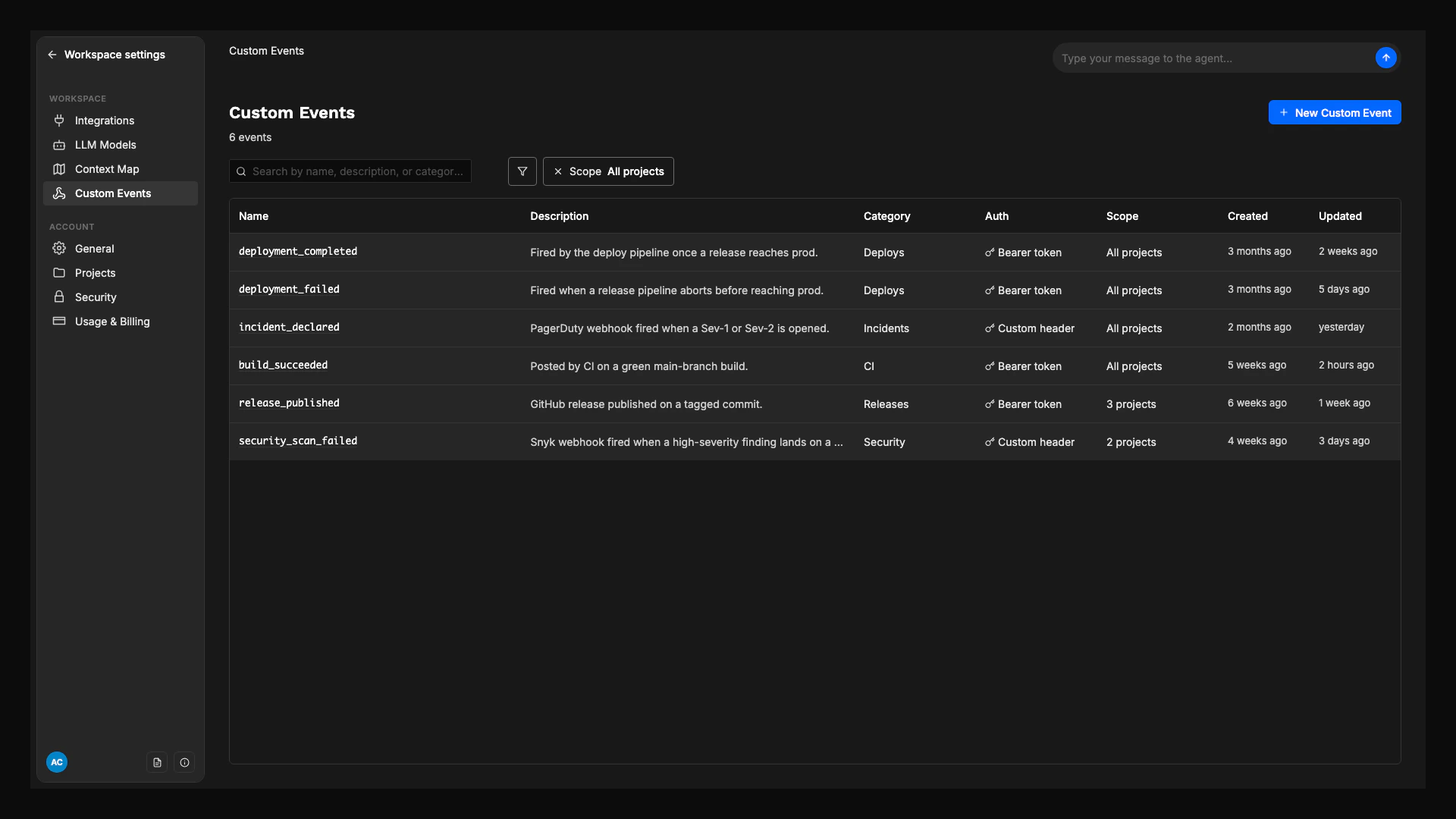
Custom Events list, under the workspace sidebar.
How it works
1. Define the event
A workspace admin creates a Custom Event in the workspace, picks an authentication mode, and decides which projects can react to it.
2. Get a webhook URL
Overcut returns a stable URL on the dispatcher (e.g.
https://workflow-dispatcher.overcut.ai/trigger-event/<token>) and, if you chose Bearer or Custom header auth, a one-time secret.3. Wire your third-party system
Configure the third-party tool to POST a JSON body to that URL when its event fires. Optional query params let you target a specific project or serialize concurrent calls.
4. Trigger workflows
Workflows in the allowed projects pick the event from the trigger picker and filter on payload fields. See Custom Events in workflows.
Permissions
Custom Events are workspace-scoped. The four permissions are granted to workspace admins by default:
Granting
customEvent.edit lets a user add any project in the workspace to an event’s allowlist. Project admins cannot add their own project to an event’s allowlist on their own.
Create a Custom Event
Open Custom Events
From the workspace sidebar, click Custom Events. The list shows every event defined in the workspace.
Click New event
Fill in the form:
- Name: lowercase letters, digits, dashes, underscores. Must be unique in the workspace. Example:
deployment_completed. This is the slug your workflows reference. - Description: optional short note for other admins.
- Category: required free-form label used to group events in the workflow trigger picker (for example,
Deployments,Incidents). The field autocompletes from categories already in use in this workspace. - Auth mode: see Authentication below.
- Scope: All projects (default) or Specific projects. With Specific projects, pick which projects can react to this event.
Copy the secret
If you chose Bearer token or Custom header, Overcut shows the generated secret in a green New secret panel: Make sure to copy your new secret now. You won’t be able to see it again. Click Copy secret and store it in the sending system’s configuration.
Copy the webhook URL
The event detail page shows the Webhook URL masked by default. Click Show to reveal it, Copy to copy it to the clipboard, or Example to expand a ready-to-paste curl snippet and use Copy curl.
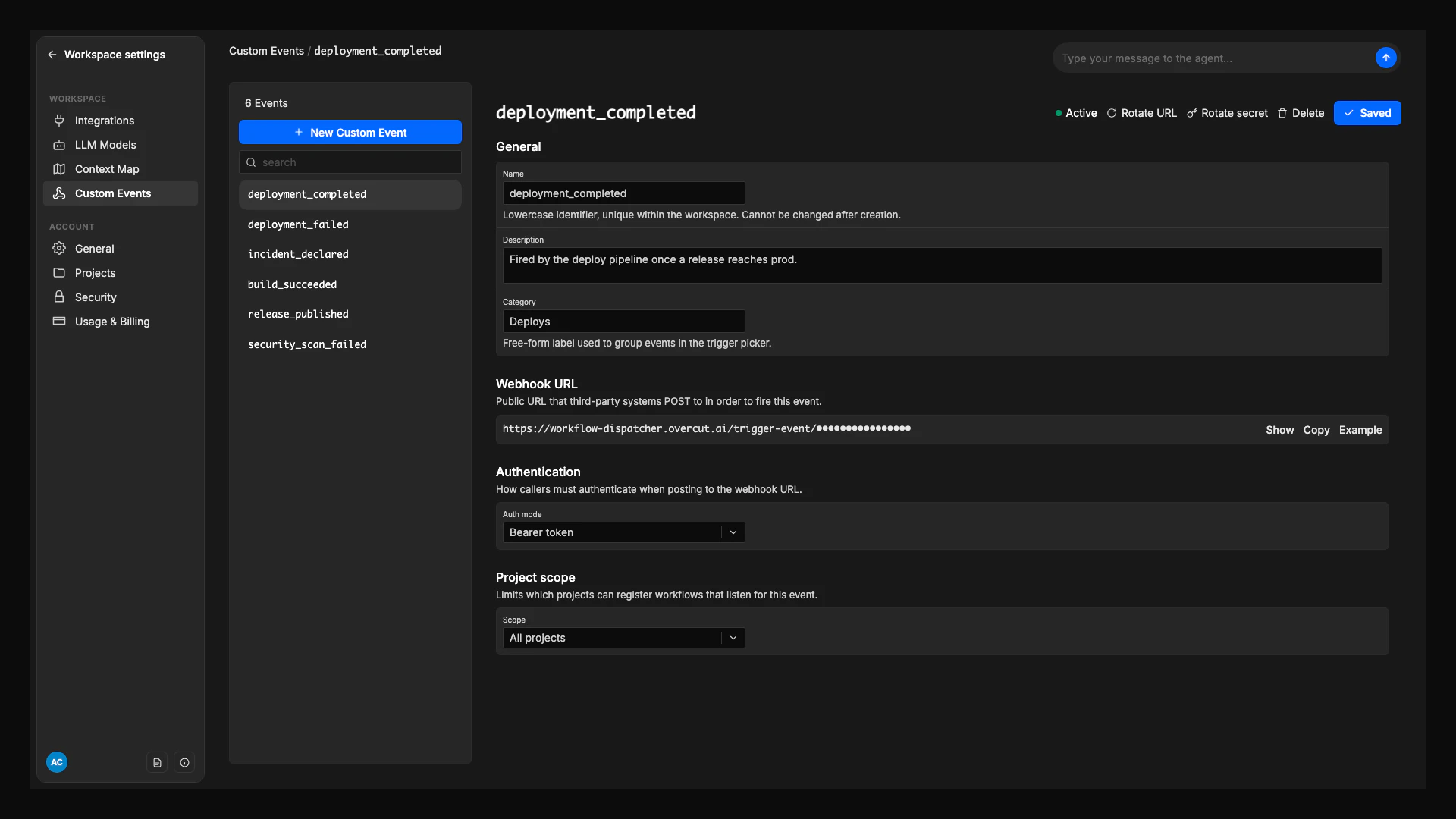
The event detail page after creation: General, Webhook URL, Authentication, and Project scope.
Authentication
Pick one auth mode when you create the event. You can change it later.- Bearer token (default)
- Custom header
- None (URL only)
The sender includes a standard Bearer is the right default for almost every integration: scripts, CI jobs, Datadog, Grafana, Jenkins. The secret can be auto-generated by Overcut or pasted in if the sending system already has one to reuse.
Authorization: Bearer <secret> header on every request.Target a specific project
Append?projectId=<id> to fire the event in a single project instead of fanning out to every project the event allows:
403 project_not_allowed. If you omit projectId, the event fans out: every project that allows it receives an independent firing evaluated against its own workflows.
Serialize concurrent calls with lockKey
By default, two requests arriving at the same time run two parallel workflow executions. If you want to serialize, pass?lockKey=<scope>:
(event, lockKey) pair run one at a time, and within a short dedupe window collapse into a single queued execution per workflow. Allowed characters: letters, digits, _, ., -, :, up to 128 chars.
Improve how runs appear in Overcut
Four optional top-level fields in the payload control how the workflow run looks in Overcut’s run list. They are also still readable frompayload.* in trigger conditions.
Send them like any other payload field:
Send events from your tools
The four recipes below cover some common SDLC integrations. They all use the canonicalBearer token auth. For the complete request and response contract, see the Custom Events API reference.
curl (universal baseline)
Any shell script or service that can runcurl can fire an event:
Jenkins
Use the HTTP Request plugin in a post-build step orJenkinsfile stage to notify Overcut when a build finishes.
Declarative pipeline:
withCredentials so it never lands in a build log.
Datadog monitors
Datadog’s Webhooks integration sends a POST when a monitor triggers. Configure one webhook per Overcut event you want to fire, then reference it with@webhook-<name> in any monitor’s notification message.
Webhook configuration (Datadog → Integrations → Webhooks):
-
URL:
https://workflow-dispatcher.overcut.ai/trigger-event/<token> -
Custom Headers (JSON):
-
Payload:
payload.status == "alert" and read the full Datadog metadata from payload.*.
Grafana Alerting
Configure a Grafana webhook contact point and assign it to a notification policy. Contact point (Alerting → Contact points → New contact point):- Integration: Webhook
- URL:
https://workflow-dispatcher.overcut.ai/trigger-event/<token> - HTTP method:
POST - Authorization Header Scheme:
Bearer - Authorization Header Credentials:
<secret>
payload.alerts[*]. For richer run-list display, switch to a Custom Payload template and project objectName, objectNumber, and objectUrl into the body.
Rotate the URL token or secret
Both the URL token and the auth secret can be rotated independently from the event detail page.- Rotate URL token: invalidates the current webhook URL and generates a new one. Any sender still using the old URL starts getting
404 token_invalidimmediately. - Rotate secret: invalidates the current auth secret and shows the new one in the same one-time New secret panel. The URL keeps working.
Change scope or rename
- Change scope (All projects ↔ Specific projects, or edit the allowed projects list) takes effect immediately. Workflows in newly-excluded projects silently stop firing for the event.
- Rename the event (change its
nameslug) requires updating the trigger source in any workflow that references the old slug. Trigger picker entries for the old slug stop matching incoming events.
Delete an event
Deleting an event invalidates the URL immediately (the dispatcher returns404 token_invalid) and stops every workflow that was triggering on the event. Past workflow runs are preserved and continue to show the event’s slug as their trigger; the runs are not retroactively edited.
Next steps
Use a Custom Event in a workflow
Pick the event in the trigger picker, filter on
payload.* fields, and access event data in downstream steps.API reference
Full request and response contract: every header, query param, error code, and limit.