

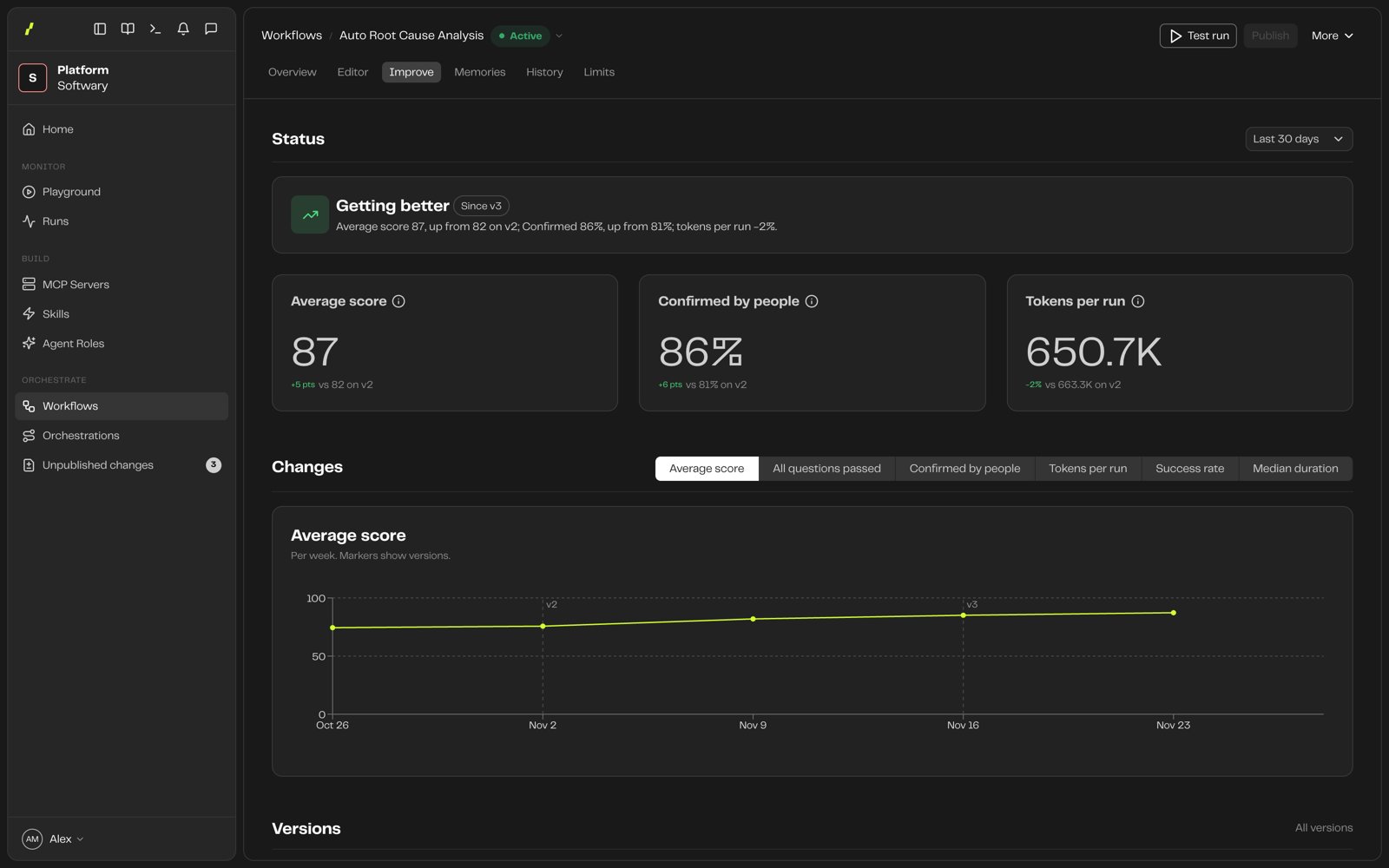
Status compares the newest version with the one before it.
Sections
Status
The status line compares the newest published version with the version before it, using the online evaluation average score:
The title names the version it compares against, such as “Getting better since v4”, and a sentence below sums up how score, success rate and tokens moved.
Three cards follow:
- Average score: the newest version’s average evaluation score. Only its own runs count, even when the period includes other versions.
- Impact: the workflow’s main Impact rate, such as Addressed before merge for a code review workflow.
- Tokens per run: the median input and output tokens of a run.
Changes
Changes charts one measure at a time. Pick it from Measure: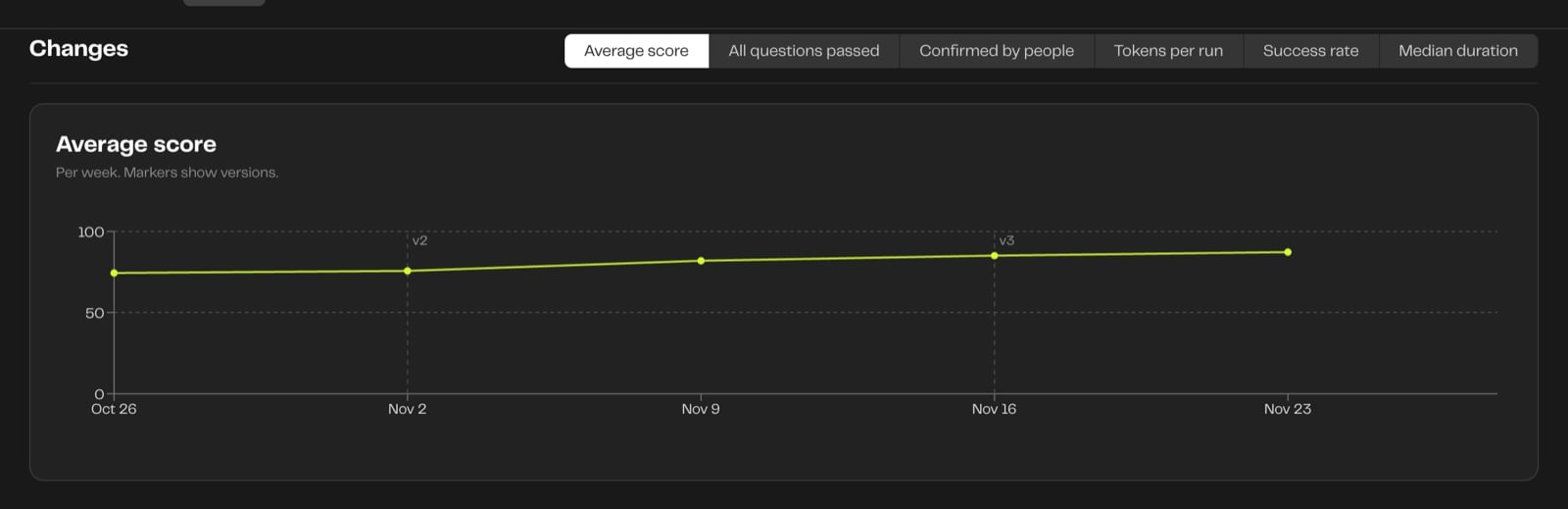
Changes: the average score rose after v2 and v3 were published.
Versions
Versions lists each published version that ran in the period, with Published, Runs, Success, Average score, the Impact rate, Tokens per run and Median duration. Each value shows how it changed from the previous version. Select All versions to open the workflow’s version history.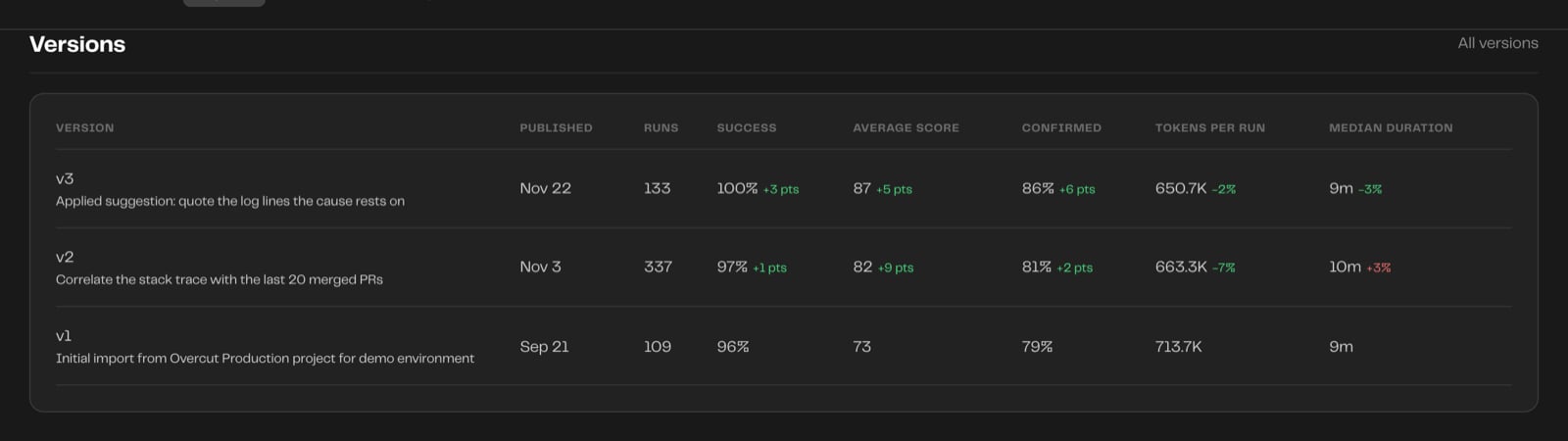
Versions: each published version side by side, with the change from the one before.
A typical loop
Find the weak spot
Check Status and Versions. A low Impact rate or a falling score points to what to fix. Open Evaluated runs or Declined comments to see real examples.
Change the workflow
Adjust instructions, skills or tools in the editor, or ask the assistant for suggestions, then publish.
Compare
Once the new version has a few runs, Status and Versions show whether it did better. If it didn’t, roll back from the version history.
The Improve section on Overview
The workflow Overview has a shorter Improve section with the status line, the Changes chart and the Self improvements panel. Select Open Improve to go to the full tab. When Continuous Intelligence is off, the Improve tab is hidden and the Improve section on Overview shows the latest versions, the Self improvements panel and the Memories panel instead.Measures on each run
Run lists on the workflow show two extra columns when Continuous Intelligence is on:- Score: the run’s evaluation score from 0 to 100. Hover it to see how many questions passed.
- Outcome: a one-line summary of what happened to the run’s outputs, such as “Merged - 3 of 4 addressed”.
Ask the assistant
On the Impact rate cards, select Explore to discuss a number with the assistant. You can also ask in chat about any workflow, for example “Why did the merge rate drop after v7?” or “Which evaluation question fails most often?”. See Continuous Intelligence.Related
- Workflow Version History: publish and roll back workflow versions
- Online Evaluation: the score behind Status
- Workflow Impact: the outcome rates behind the Impact card and column