

For first-class providers such as GitHub, GitLab, Azure DevOps, Jira, Linear, ClickUp, and Slack, most teams should start with native workspace integrations instead. Use the Integrations overview to choose the right connection path, and see the MCP Servers reference when you want to extend agents with external tools.
What is the MCP Catalog?
The MCP Catalog is an in-app gallery of MCP server definitions. Overcut fetches the catalog from the overcut-mcp-catalog GitHub repository and presents it as a searchable, filterable page inside your workspace. It is the standard way to add MCP-based access to external tools and unsupported systems, and it can also complement native integrations when your workflow needs extra tool coverage. Each catalog entry defines:- Server configuration: the JSON config Overcut uses to connect (command + args or URL + headers)
- Required secrets: credentials the server needs, with descriptions and help links
- Recommended tools: a curated subset of tools suitable for most use cases
- All tools: the full set of tools the server provides
Browse the Catalog
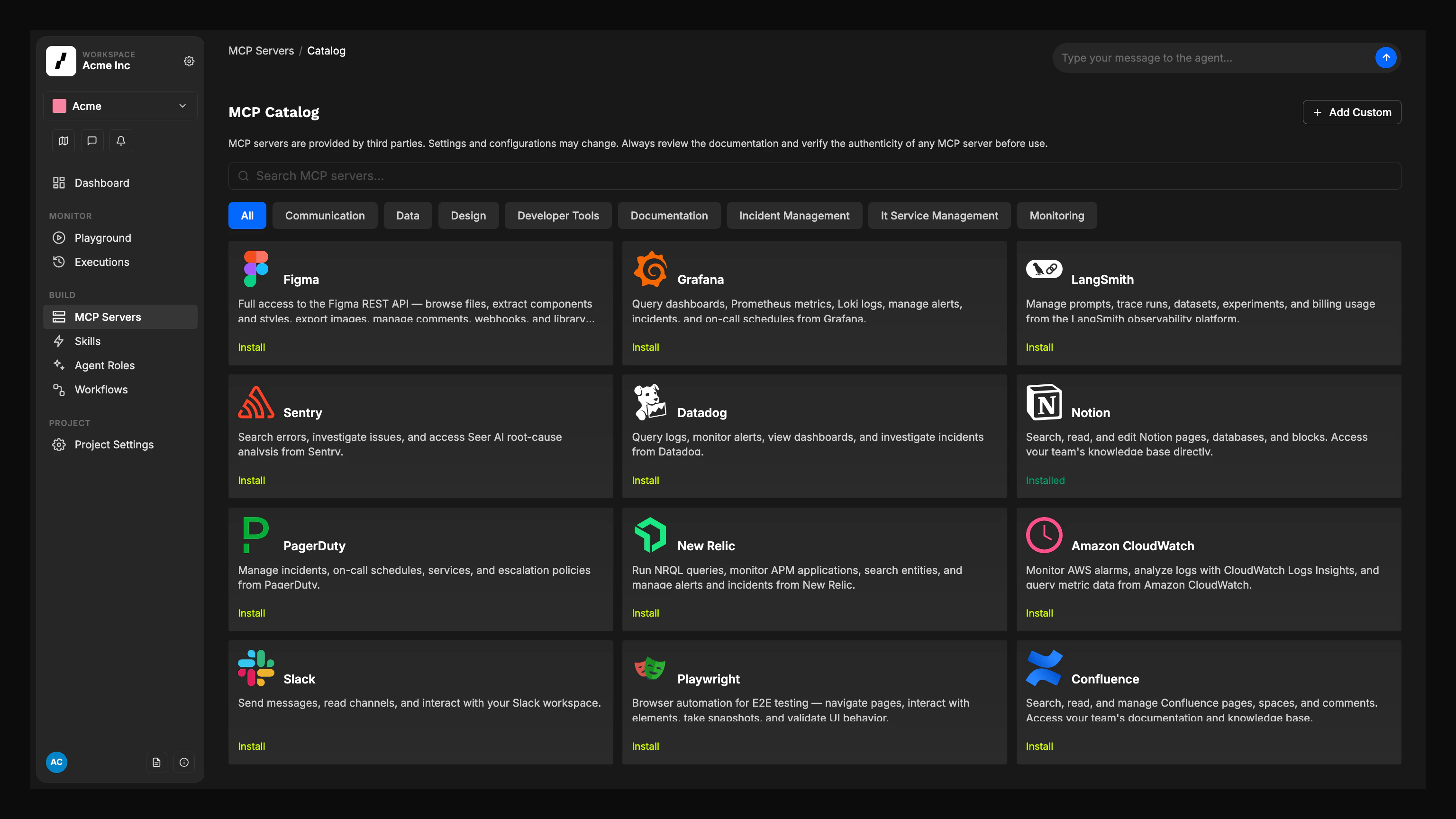
Open the catalog
Navigate to MCP Servers in the sidebar and click Add MCP Server. This opens the catalog.
Search and filter
Use the search field to find servers by name or description. Use category filters to narrow results by use case (e.g. monitoring, design, documentation).
Check install status
Each catalog card shows its status: Installed if the server already exists in your workspace, or Install if it hasn’t been added yet.
Install from the Catalog
Open the catalog entry
Click a catalog card to open its install page. You’ll see the server description, configuration preview, and setup inputs.
Provide required secrets
For each required credential, enter a new secret value, or (if the same credential already exists in your Vault) it will be detected and attached automatically.
Choose allowed tools
Use the All Tools toggle to grant every tool, or leave it off to use per-tool checkboxes. Tools default to the catalog’s recommended set. Toggle individual tools on or off as needed.
Review the configuration
The install page shows a read-only preview of the server’s JSON configuration. Verify it looks correct before proceeding.
Install
Click Install MCP Server. Overcut creates the server and redirects you to its detail page so you can verify the setup immediately.
Authorize an installed remote MCP server
If an installed server uses OAuth, open it and select Connect to sign in with the provider. Agents cannot use it until it is connected. See Connect with OAuth.Split a Server Across Agents
You can install the same MCP server multiple times with different tool sets and assign each instance to different agents. This gives you fine-grained control over what each agent can do. Common patterns:- Scoped access: give a read-only Datadog instance to a triage agent (only log query tools) and a full-access instance to an incident responder (query + alert management tools)
- Project isolation: install the same Sentry server twice with different API keys so two agents monitor different projects independently
- Least privilege: limit each agent to only the tools it actually needs, reducing the risk of unintended actions
Add a Custom Server
If the server you need isn’t in the catalog, click Add Custom in the top-right corner of the catalog page. This creates a blank MCP server entry and opens its detail page, where you can configure it manually. See the MCP Servers reference for the full manual setup flow.Contribute to the Catalog
The catalog is open source at overcut-ai/overcut-mcp-catalog. Each server is defined as a directory containing acatalog.json file.
Repository structure
Catalog entry schema
Eachcatalog.json follows this structure:
Create entries with AI
The catalog repository ships with built-in rules for popular AI coding tools (Claude Code, Cursor, Codex, Gemini). Clone it and use your preferred agent to generate new catalog entries:Next Steps
- MCP Servers Reference: Configuration reference, manual setup, allowed tools, and runtime behavior
- Vault: Manage the secrets referenced by MCP server configurations
- Agent Run Action: Execute agents with MCP tools
- Overcut Playbooks: Pre-built workflows you can import and customize