

Set it up
Write the questions
Open the workflow, select Editor, and select the Evaluation box after the last step. Add questions, or select Generate to have Overcut draft them from the workflow’s instructions.
Try them on recent runs
Select Test on last 10 runs to see how the questions would have scored your latest successful runs. Adjust any question that gets surprising answers.
Publish the workflow
Questions are part of the workflow, so they take effect when you publish.
Turn on online evaluation
On the workflow’s Improve tab, in Evaluation, select the gear icon (Evaluation settings). Turn on Use online evaluation, choose a Sample size (% of finished runs), and select Save.
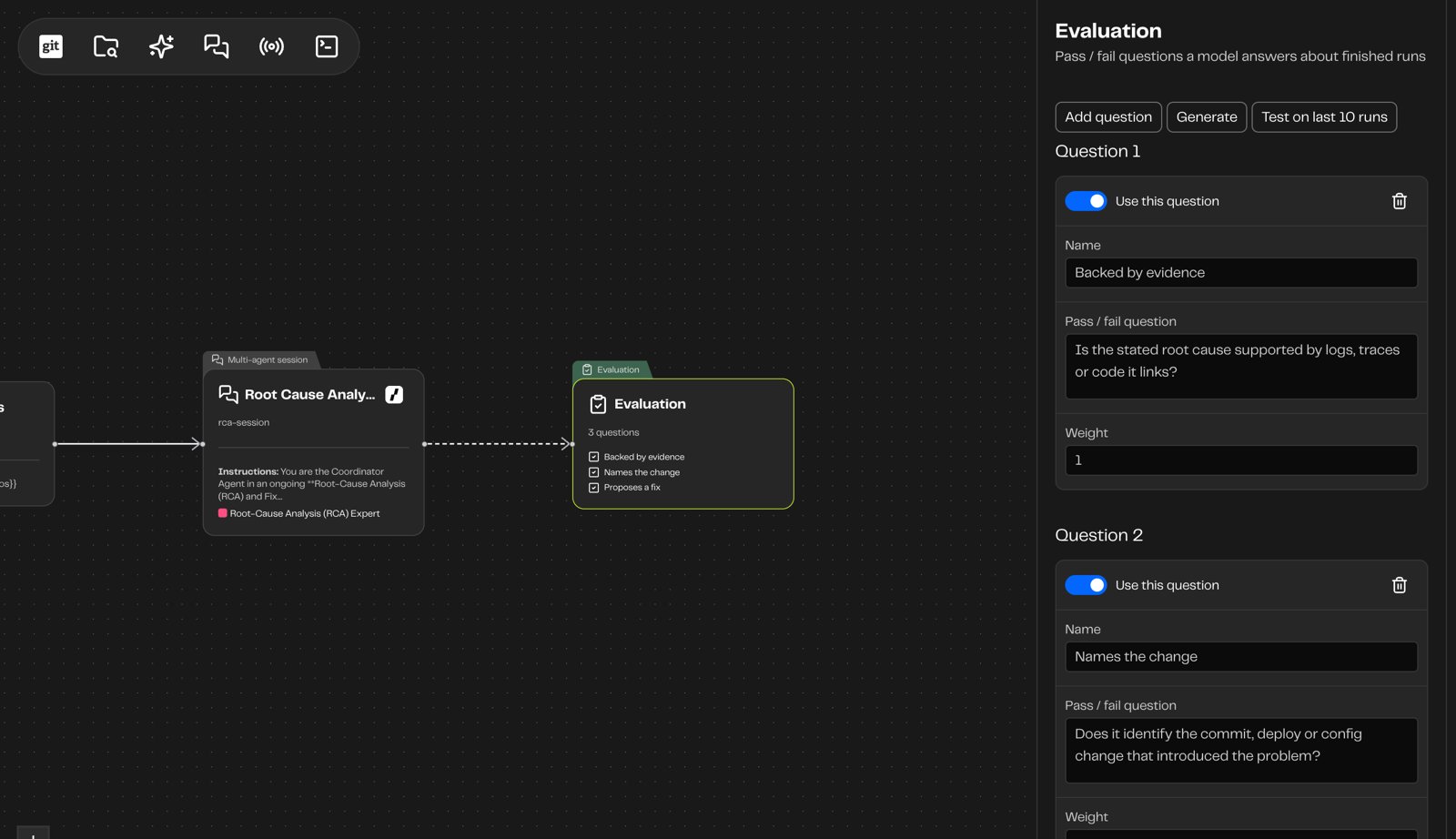
Evaluation questions in the workflow editor.
Write good questions
Each question has a Name, the Pass / fail question itself, and a Weight from 0 to 1 that sets how much it counts in the score. Turn off Use this question to stop asking a question without deleting it. A workflow can have up to 10 questions. Ask about the quality of the result, not whether a step ran or followed a format:
A few more tips:
- Ask one thing per question, so a failure tells you exactly what went wrong.
- Give the questions that matter most the highest weight. A weight of 0 keeps a question visible without counting it in the score, which is useful while you try it out.
- Use Generate as a starting point. It suggests up to 5 questions at a time and leaves your existing questions alone.
Choose a sample size
The sample size is the share of successful runs that are evaluated. The default is 20%. A larger sample gives steadier numbers and uses more tokens. For a workflow that runs rarely, raise it so each version gets enough evaluated runs to compare. Only successful runs are evaluated. Failed runs, and runs of an unpublished draft, are not.Read the results
Each run
On a run’s page, select Results. Scores lists each question as Pass, Fail or Unknown, with the reason. Unknown means the run doesn’t show enough to tell. The model doesn’t guess. The run’s score is the weighted share of questions that passed, from 0 to 100. Unknown answers don’t count either way.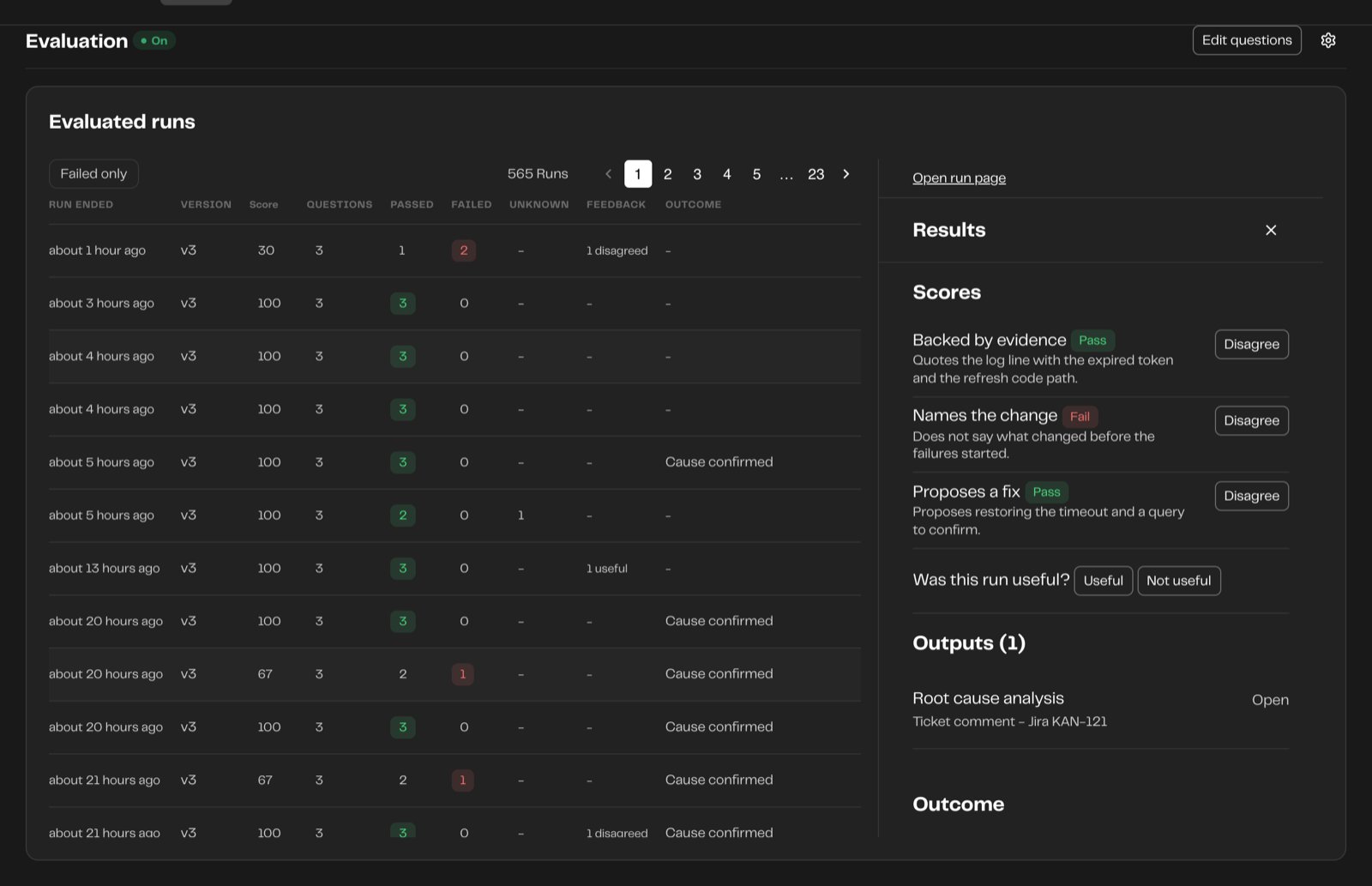
A run's scores, with the reason for each answer.
Across the workflow
On the Improve tab, Evaluation > Evaluated runs lists every evaluated run in the period with its score, version and how many questions passed or failed. Sort by Score to find the weakest runs, or turn on Failed only. Select a row to see why.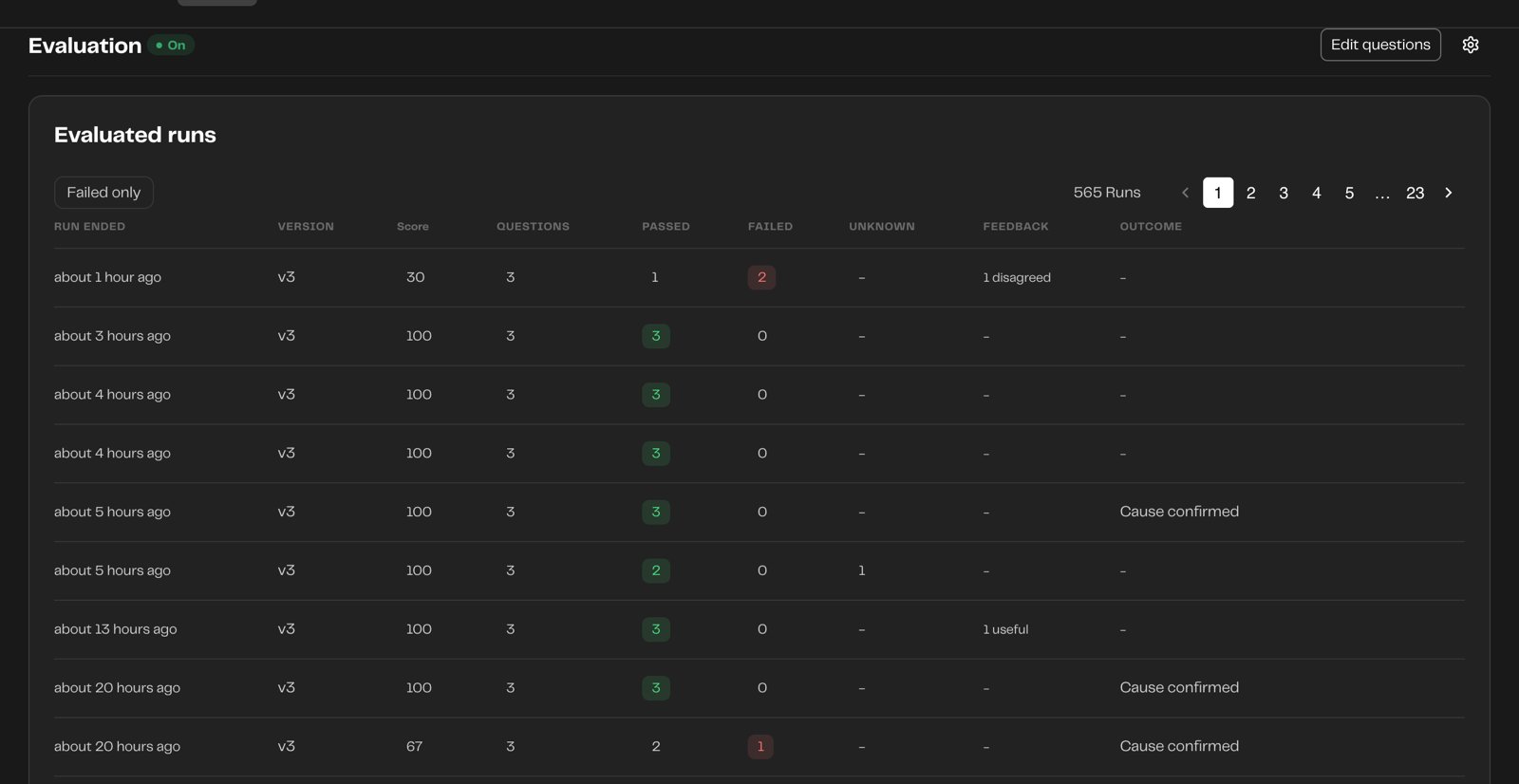
Evaluated runs for the workflow.
When a run has no score
The Scores section says why. The common reasons: evaluation is off, the run wasn’t in the sample, it didn’t succeed, or evaluation is still running (it starts a few minutes after the run ends). If it says no model is available, set LLM model on Measure & Improve.Tell Overcut when it’s wrong
Under Scores on a run:- Select Disagree on an answer you think is wrong.
- Answer Was this run useful? with Useful or Not useful.
Usage
Evaluation uses the LLM model set on Measure & Improve, or the workspace default model. Its tokens are included in the evaluated run’s total tokens and count toward workspace usage limits. Generating and testing questions doesn’t add tokens to any run.Ask the assistant
The assistant can explain a run’s answers, find the questions that fail most often, draft and test new questions, and turn evaluation on or off. For example: “Which evaluation question fails most often this month, and why?”Related
- Workflow Improve Tab: compare versions by average score
- Workflow Impact: what happened to the run’s outputs
- Workflow Versioning: drafts, publishing and versions