

Automate recurring tasks (nightly code scans, weekly backlog grooming, or monthly dependency updates) by triggering workflows on a fixed schedule instead of waiting for an external event.Scheduled Workflows let you configure cron-based triggers that launch a workflow at precise times. Rather than reacting to a webhook from GitHub or Jira, the workflow is kicked off by Overcut’s internal scheduler according to a cron expression you define.
What Are Scheduled Workflows?
A Scheduled Workflow is any Overcut Workflow whose trigger type is Scheduled. These workflows run automatically at the times you specify. Some examples are:Daily Planning
Run a daily planning session to review the backlog, plan the day, and share the plan with the team.
Continuous Improvement
Scan all repos every day and for security or performance improvements and open new issues.
Tech-debt Cleaner
Pick up tech-debt issues from the backlog and create PRs to fix them.
Weekly Backlog Triage
Let an Agent review stale issues and propose closing or updating them.
Defining a Schedule
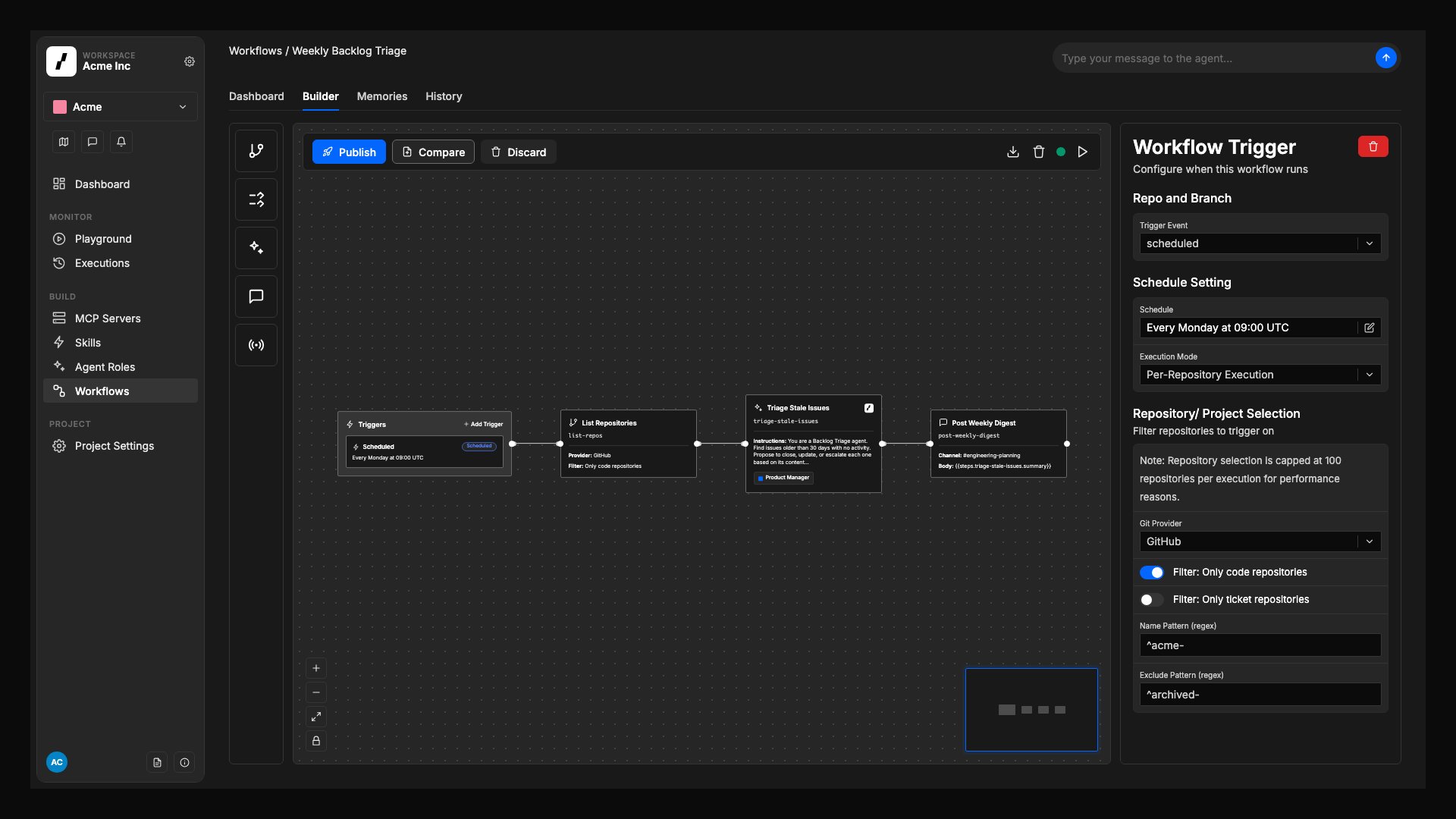
- Create a Workflow in the Workflow Builder.
- Click on the trigger block and change its type to
Scheduled. - Click on the Schedule panel to define when the workflow should run.
- Choose an Execution Mode (see below) and Save.
Each workflow can have only one scheduled trigger. However, you can use a single cron expression to schedule multiple execution times (for example, every day at 1pm and 7pm). If you need completely different schedule patterns, create separate workflows for each schedule.
Execution Modes
When you choose a Scheduled trigger you must also decide how many times the workflow should execute during each schedule interval. Overcut offers two modes:| Mode | What Happens at Run Time | Typical Use Cases |
|---|---|---|
| Single (default) | The workflow runs exactly once per schedule, using whatever repository (or none) you have hard-coded in the canvas. | • House-keeping tasks in a single infra repo • Ticket triage that doesn’t touch code • Nightly job against a mono-repo |
| Per-Repository | Overcut first evaluates the attached Repository Selector. For each matching repository (up to 100) it queues a separate execution. | • Dependency or security scans across many repos • Automated issue filing in every project • Bulk codebase migrations |
Per-Repository mode fans out N executions where N is the number of repositories returned by the selector. Monitor your usage quotas and choose narrow selectors when starting out.
Time-Zone Awareness
Schedules are evaluated in the workspace timezone (default: UTC). Workspace owners can update this in Account → Settings. All human-readable summaries and upcoming run previews reflect the selected zone.Monitoring & Troubleshooting
- Execution History: Each run appears in the Executions tab with start time, status, and logs.
- Failures & Retries: Failed runs appear in red with error details. You can retry manually or configure automatic retries.
- Pausing a Schedule: Toggle the Enable Workflow switch to temporarily suspend future executions.
Limitations & Best Practices
- One scheduled trigger per workflow: Each workflow can contain only one scheduled trigger.
- Minimum interval: The shortest supported interval is 1 minute (
* * * * *). Use responsibly to avoid rate limits. - No overlapping runs: Overcut enforces resource locking per workflow execution. If a previous scheduled run is still active for the same resource (lock key), the next run is skipped.
- Version pinning: Changes to a scheduled workflow’s definition only apply to future runs. Already queued executions keep the version that existed at queue time.
- Idempotency: Ensure your workflow can handle being re-run without unintended side effects.