> ## Documentation Index
> Fetch the complete documentation index at: https://docs.overcut.ai/llms.txt
> Use this file to discover all available pages before exploring further.
# Skills
> Discover repository-backed skills, add them to your project, and assign them to the right agents.
Agent Skills help your team reuse guidance from your repositories instead of repeating the same instructions across multiple agents. You can browse available skills from connected repositories, preview a skill before adding it, manage all registered skills in one place, and assign the right skills to the right agents.
Overcut is compatible with the open [Agent Skills spec](https://github.com/anthropics/skills), so you can bring any existing `SKILL.md`-formatted skills straight from your connected code repositories or from a skills marketplace. No rewriting or re-authoring required.
Skills are discovered from repositories that are already connected to your workspace. If you do not see the repository you need, start with the [Repositories guide](/docs/get-started/repositories).
## What Agent Skills are
A skill is a reusable set of instructions stored in one of your connected repositories. After you add a skill to a project, it becomes part of that project's shared toolkit and can be assigned to agents when needed.
Skills are useful when you want to:
* Reuse team standards without copying the same instructions into multiple agents
* Keep guidance close to the repository or codebase it supports
* Give agents focused expertise for specific frameworks, services, or workflows
* Maintain one project-level list of approved skills for your team
## Discover skills from connected repositories
Overcut shows available skills from repositories that are connected to your workspace. This gives your team a single place to find reusable guidance that is already packaged in the repositories you use every day.
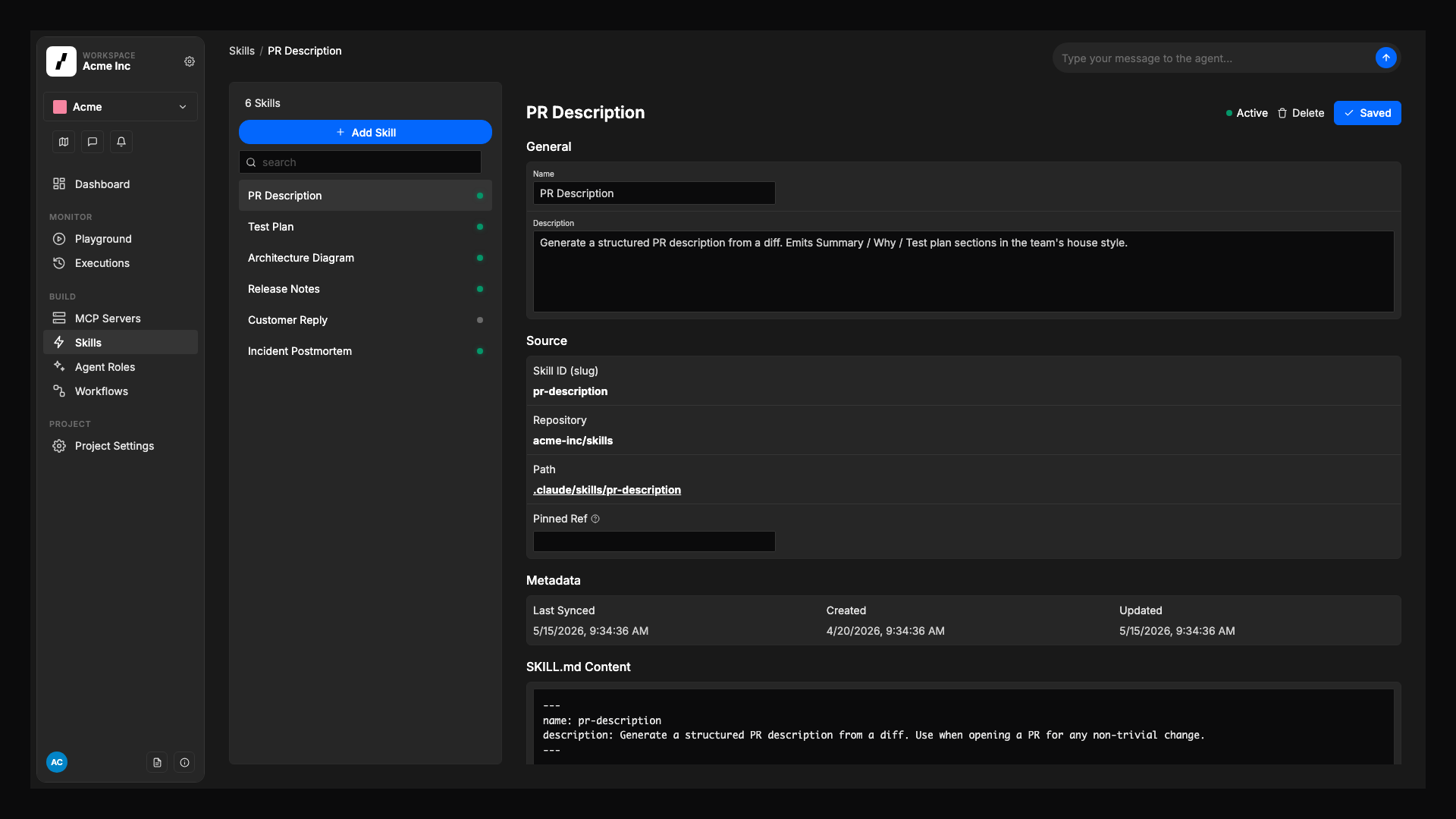 In your project, go to **Skills** to view the project-level list of registered skills and discover new ones.
Select **Add Skill** to open **Add Skills from Repository**, where you can browse skills from your connected repositories.
In **Search**, use **Repository** to choose the repository that contains the skills you want to use.
Select **Scan for skills**. Overcut checks the selected repository and shows discovered skills in **Results**.
Use **Select Skills** to choose the skills you want to add. You can add one skill or multiple skills in the same flow.
Overcut hides skills that are already added to the project, so you cannot add duplicates. If every discovered skill is already in the project, the **Results** area tells you so.
If your team manages many repositories, skills discovery helps you find reusable guidance without manually searching each repository.
## Preview a skill before adding it
Before you register a skill in the project, you can preview its instructions to confirm that it matches your team's needs.
When you open a skill preview, you can review:
* The skill name
* The connected repository it comes from
* The repository path for the skill
* The skill instructions from `SKILL.md`
When you select multiple skills, **Skill Details** shows one skill at a time and indicates how many are selected, so you can review each skill without losing your selection.
Previewing skills helps you validate each skill's purpose, scope, and wording before making it available to agents.
## Add one or more skills to the project
Once you find skills you want to use, add them to the project's **Skills** area. This creates a shared project-level list that your team can review and manage over time.
Use **Skill Details** to confirm the selected skills are the right fit for the project before you add them.
Select **Add Skill** when one skill is selected. When more than one skill is selected, the primary action changes to **Add N Skills**.
After you add multiple skills, Overcut returns you to the project **Skills** list. Use the list to review the saved skills and check where each skill comes from, including its connected repository, source path, and any pinned reference if one is shown.
The project-level **Skills** list gives your team a central place to review which reusable instructions are available for agents in that project.
## Enable, disable, and remove skills
You can manage each project skill without editing the source repository directly.
Keep a skill available for assignment to agents when your team wants to use it.
Temporarily prevent a skill from being assigned while keeping it in the project list for later use.
Delete a skill from the project's **Skills** area when it is no longer needed.
Disabling a skill is useful when you want to pause its availability without losing track of it. Removing a skill is better when you want to clean up the project list entirely.
Only enabled project skills are available when you assign skills to an agent.
## Assign skills to agents
After a skill has been added to the project and left enabled, you can assign it to individual agents. This lets each agent use the specific guidance it needs without overloading every agent with the same instructions.
Go to the agent you want to update in your project configuration.
In the agent's **Skills** section, choose from the enabled project skills.
Update the agent later to remove skills that are no longer relevant.
This workflow works well alongside your agent's base role and other configuration. To learn more about agent setup, see [Base Agent Types](/docs/reference/base-agents).
## Related documentation
* [Repositories](/docs/get-started/repositories)
* [Product Overview](/docs/get-started/product-overview)
* [Base Agent Types](/docs/reference/base-agents)
In your project, go to **Skills** to view the project-level list of registered skills and discover new ones.
Select **Add Skill** to open **Add Skills from Repository**, where you can browse skills from your connected repositories.
In **Search**, use **Repository** to choose the repository that contains the skills you want to use.
Select **Scan for skills**. Overcut checks the selected repository and shows discovered skills in **Results**.
Use **Select Skills** to choose the skills you want to add. You can add one skill or multiple skills in the same flow.
Overcut hides skills that are already added to the project, so you cannot add duplicates. If every discovered skill is already in the project, the **Results** area tells you so.
If your team manages many repositories, skills discovery helps you find reusable guidance without manually searching each repository.
## Preview a skill before adding it
Before you register a skill in the project, you can preview its instructions to confirm that it matches your team's needs.
When you open a skill preview, you can review:
* The skill name
* The connected repository it comes from
* The repository path for the skill
* The skill instructions from `SKILL.md`
When you select multiple skills, **Skill Details** shows one skill at a time and indicates how many are selected, so you can review each skill without losing your selection.
Previewing skills helps you validate each skill's purpose, scope, and wording before making it available to agents.
## Add one or more skills to the project
Once you find skills you want to use, add them to the project's **Skills** area. This creates a shared project-level list that your team can review and manage over time.
Use **Skill Details** to confirm the selected skills are the right fit for the project before you add them.
Select **Add Skill** when one skill is selected. When more than one skill is selected, the primary action changes to **Add N Skills**.
After you add multiple skills, Overcut returns you to the project **Skills** list. Use the list to review the saved skills and check where each skill comes from, including its connected repository, source path, and any pinned reference if one is shown.
The project-level **Skills** list gives your team a central place to review which reusable instructions are available for agents in that project.
## Enable, disable, and remove skills
You can manage each project skill without editing the source repository directly.
Keep a skill available for assignment to agents when your team wants to use it.
Temporarily prevent a skill from being assigned while keeping it in the project list for later use.
Delete a skill from the project's **Skills** area when it is no longer needed.
Disabling a skill is useful when you want to pause its availability without losing track of it. Removing a skill is better when you want to clean up the project list entirely.
Only enabled project skills are available when you assign skills to an agent.
## Assign skills to agents
After a skill has been added to the project and left enabled, you can assign it to individual agents. This lets each agent use the specific guidance it needs without overloading every agent with the same instructions.
Go to the agent you want to update in your project configuration.
In the agent's **Skills** section, choose from the enabled project skills.
Update the agent later to remove skills that are no longer relevant.
This workflow works well alongside your agent's base role and other configuration. To learn more about agent setup, see [Base Agent Types](/docs/reference/base-agents).
## Related documentation
* [Repositories](/docs/get-started/repositories)
* [Product Overview](/docs/get-started/product-overview)
* [Base Agent Types](/docs/reference/base-agents)