> ## Documentation Index
> Fetch the complete documentation index at: https://docs.overcut.ai/llms.txt
> Use this file to discover all available pages before exploring further.
# Custom Events
> Define your own event types and trigger Overcut workflows from any third-party system via a public webhook URL.
Custom Events let your workspace expose webhook URLs that any third-party system can call to trigger workflows. Each event has a unique URL, an optional authentication header, and a free-form JSON payload that your workflows can filter on. Use Custom Events to wire SDLC tools that Overcut does not have a native integration for: CI servers like Jenkins, monitoring platforms like Datadog or Grafana, internal scripts, or any service that can send an HTTP request.
If you use GitHub, GitLab, Bitbucket, Azure DevOps, Jira, Linear, ClickUp, or Slack, prefer the [native integrations](/docs/integrations/overview) instead. Native integrations handle authentication, event normalization, and reply-target routing for you. Custom Events are for everything else.
 ## How it works
A workspace admin creates a Custom Event in the workspace, picks an authentication mode, and decides which projects can react to it.
Overcut returns a stable URL on the dispatcher (e.g. `https://workflow-dispatcher.overcut.ai/trigger-event/`) and, if you chose Bearer or Custom header auth, a one-time secret.
Configure the third-party tool to POST a JSON body to that URL when its event fires. Optional query params let you target a specific project or serialize concurrent calls.
Workflows in the allowed projects pick the event from the trigger picker and filter on payload fields. See [Custom Events in workflows](/docs/workflows/custom-events).
## Permissions
Custom Events are workspace-scoped. The four permissions are granted to workspace admins by default:
| Permission | Allows |
| -------------------- | ------------------------------------------------------------------------- |
| `customEvent.view` | List events, see webhook URLs |
| `customEvent.create` | Create a new event |
| `customEvent.edit` | Edit fields, change allowed projects, rotate the URL token or auth secret |
| `customEvent.delete` | Delete an event |
Granting `customEvent.edit` lets a user add any project in the workspace to an event's allowlist. Project admins cannot add their own project to an event's allowlist on their own.
## Create a Custom Event
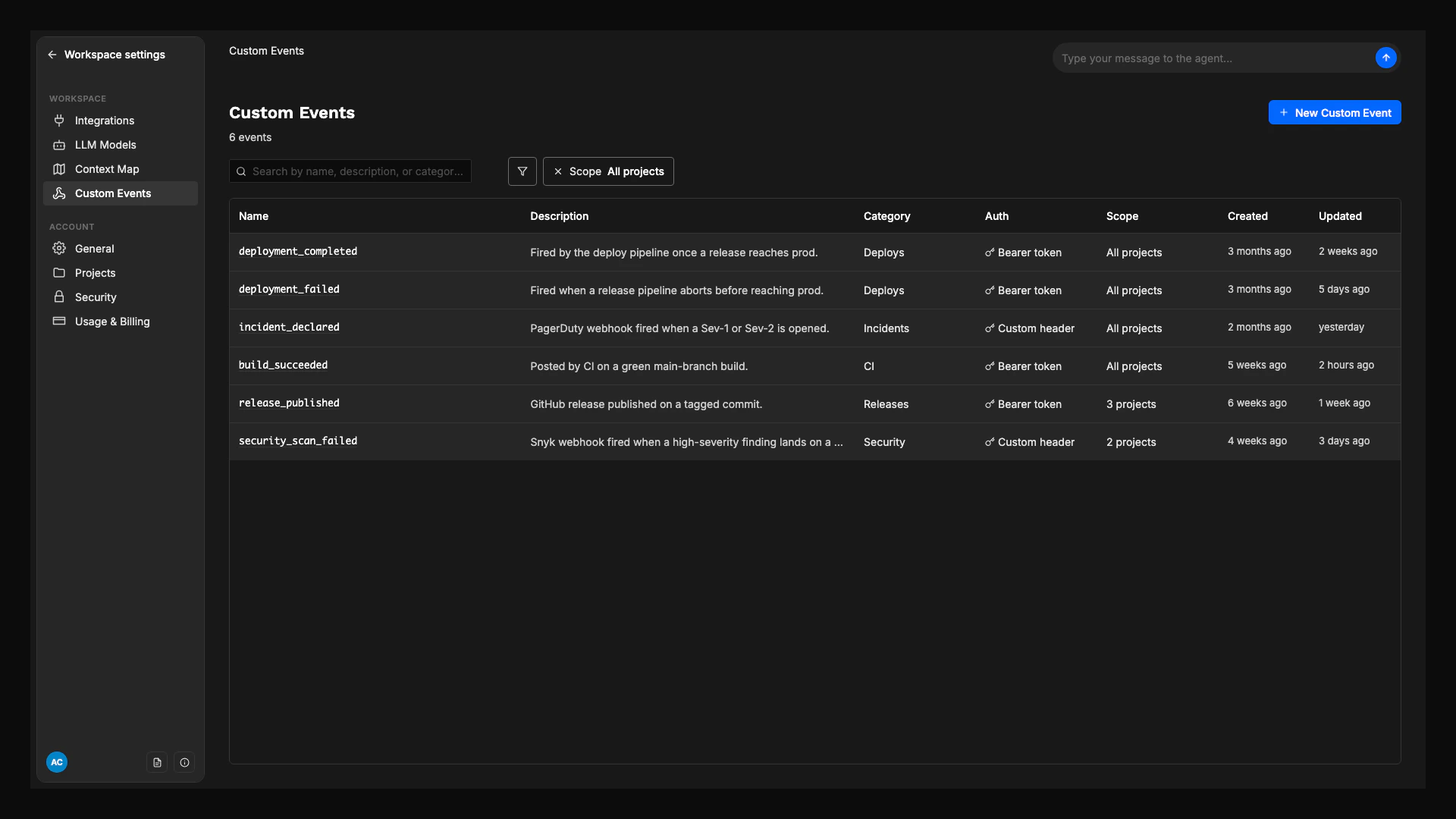
From the workspace sidebar, click Custom Events. The list shows every event defined in the workspace.
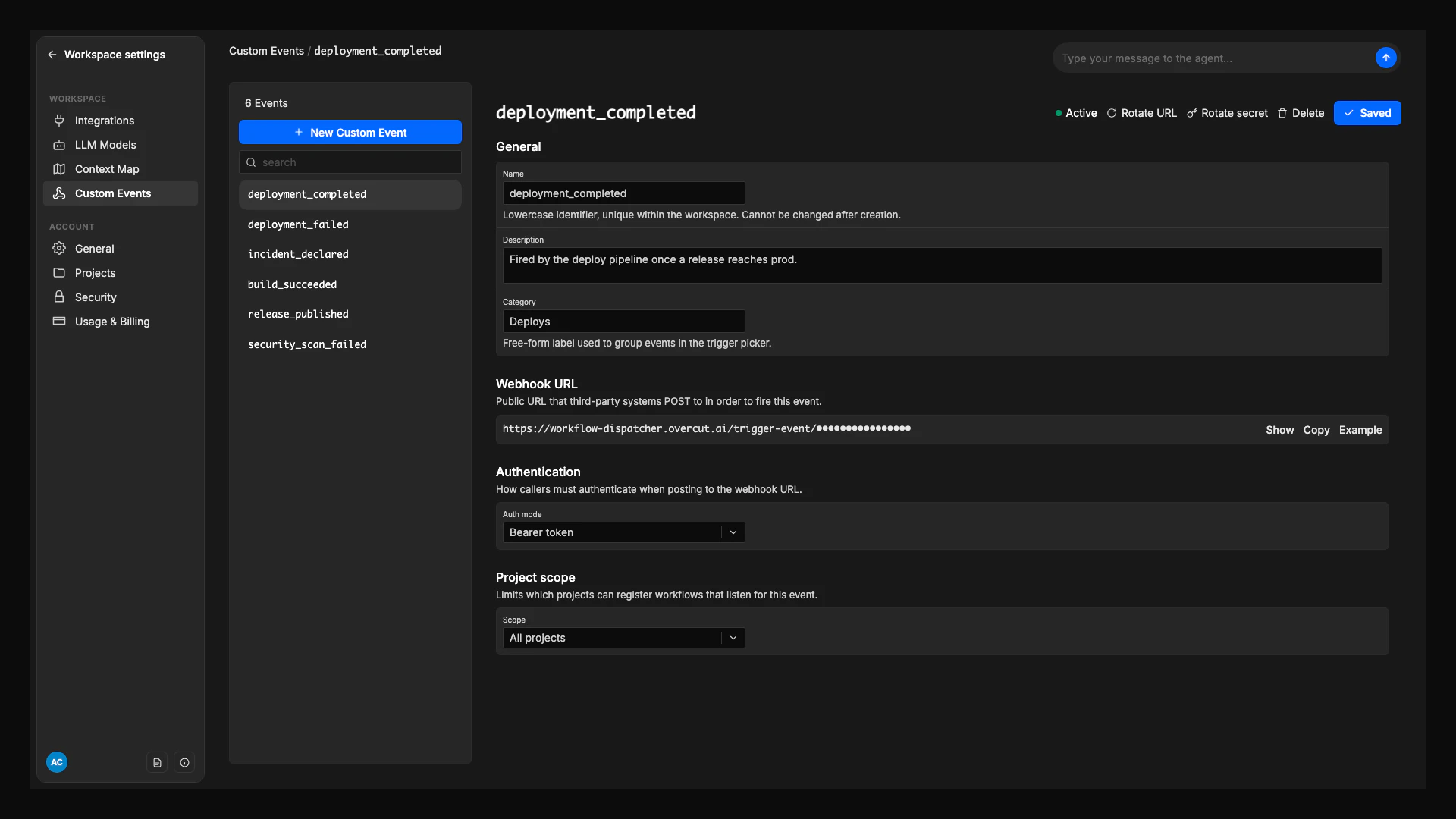
Fill in the form:
* **Name**: lowercase letters, digits, dashes, underscores. Must be unique in the workspace. Example: `deployment_completed`. This is the slug your workflows reference.
* **Description**: optional short note for other admins.
* **Category**: required free-form label used to group events in the workflow trigger picker (for example, `Deployments`, `Incidents`). The field autocompletes from categories already in use in this workspace.
* **Auth mode**: see [Authentication](#authentication) below.
* **Scope**: **All projects** (default) or **Specific projects**. With **Specific projects**, pick which projects can react to this event.
If you chose **Bearer token** or **Custom header**, Overcut shows the generated secret in a green New secret panel: Make sure to copy your new secret now. You won't be able to see it again. Click Copy secret and store it in the sending system's configuration.
The event detail page shows the **Webhook URL** masked by default. Click Show to reveal it, Copy to copy it to the clipboard, or Example to expand a ready-to-paste curl snippet and use Copy curl.
## How it works
A workspace admin creates a Custom Event in the workspace, picks an authentication mode, and decides which projects can react to it.
Overcut returns a stable URL on the dispatcher (e.g. `https://workflow-dispatcher.overcut.ai/trigger-event/`) and, if you chose Bearer or Custom header auth, a one-time secret.
Configure the third-party tool to POST a JSON body to that URL when its event fires. Optional query params let you target a specific project or serialize concurrent calls.
Workflows in the allowed projects pick the event from the trigger picker and filter on payload fields. See [Custom Events in workflows](/docs/workflows/custom-events).
## Permissions
Custom Events are workspace-scoped. The four permissions are granted to workspace admins by default:
| Permission | Allows |
| -------------------- | ------------------------------------------------------------------------- |
| `customEvent.view` | List events, see webhook URLs |
| `customEvent.create` | Create a new event |
| `customEvent.edit` | Edit fields, change allowed projects, rotate the URL token or auth secret |
| `customEvent.delete` | Delete an event |
Granting `customEvent.edit` lets a user add any project in the workspace to an event's allowlist. Project admins cannot add their own project to an event's allowlist on their own.
## Create a Custom Event
From the workspace sidebar, click Custom Events. The list shows every event defined in the workspace.
Fill in the form:
* **Name**: lowercase letters, digits, dashes, underscores. Must be unique in the workspace. Example: `deployment_completed`. This is the slug your workflows reference.
* **Description**: optional short note for other admins.
* **Category**: required free-form label used to group events in the workflow trigger picker (for example, `Deployments`, `Incidents`). The field autocompletes from categories already in use in this workspace.
* **Auth mode**: see [Authentication](#authentication) below.
* **Scope**: **All projects** (default) or **Specific projects**. With **Specific projects**, pick which projects can react to this event.
If you chose **Bearer token** or **Custom header**, Overcut shows the generated secret in a green New secret panel: Make sure to copy your new secret now. You won't be able to see it again. Click Copy secret and store it in the sending system's configuration.
The event detail page shows the **Webhook URL** masked by default. Click Show to reveal it, Copy to copy it to the clipboard, or Example to expand a ready-to-paste curl snippet and use Copy curl.
 The auth secret is hashed before it is stored. If you lose it, the only recovery is to rotate (see [Rotate](#rotate-the-url-token-or-secret) below). The webhook URL itself is always retrievable from the event detail page.
## Authentication
Pick one auth mode when you create the event. You can change it later.
The sender includes a standard `Authorization: Bearer ` header on every request.
```bash theme={null}
curl -X POST 'https://workflow-dispatcher.overcut.ai/trigger-event/' \
-H 'Authorization: Bearer ' \
-H 'Content-Type: application/json' \
-d '{"environment":"production","status":"success"}'
```
Bearer is the right default for almost every integration: scripts, CI jobs, Datadog, Grafana, Jenkins. The secret can be auto-generated by Overcut or pasted in if the sending system already has one to reuse.
The sender includes a header whose name and value you both choose. Use this when the third-party tool forces a specific header (for example, `X-API-Key: `).
```bash theme={null}
curl -X POST 'https://workflow-dispatcher.overcut.ai/trigger-event/' \
-H 'X-API-Key: ' \
-H 'Content-Type: application/json' \
-d '{"environment":"production","status":"success"}'
```
The header name lookup is case-insensitive. The value is compared after trimming whitespace.
No auth header is required. The URL token alone authenticates the request. Use this only for low-risk events from systems inside your network, or for prototypes. Anyone who has the URL can fire the event.
```bash theme={null}
curl -X POST 'https://workflow-dispatcher.overcut.ai/trigger-event/' \
-H 'Content-Type: application/json' \
-d '{"environment":"production","status":"success"}'
```
## Target a specific project
Append `?projectId=` to fire the event in a single project instead of fanning out to every project the event allows:
```bash theme={null}
curl -X POST 'https://workflow-dispatcher.overcut.ai/trigger-event/?projectId=abc123' \
-H 'Authorization: Bearer ' \
-H 'Content-Type: application/json' \
-d '{"environment":"production"}'
```
The project must be in the event's allowlist. If it is not, the dispatcher returns `403 project_not_allowed`. If you omit `projectId`, the event fans out: every project that allows it receives an independent firing evaluated against its own workflows.
## Serialize concurrent calls with lockKey
By default, two requests arriving at the same time run two parallel workflow executions. If you want to serialize, pass `?lockKey=`:
```bash theme={null}
# Two deploys to the same service: serialize.
curl ... '?lockKey=service-api'
# Deploys to different services: still parallel.
curl ... '?lockKey=service-web'
```
Requests sharing the same `(event, lockKey)` pair run one at a time, and within a short dedupe window collapse into a single queued execution per workflow. Allowed characters: letters, digits, `_`, `.`, `-`, `:`, up to 128 chars.
A good `lockKey` is whatever identifies the real-world thing the event is about: the deployment target, the incident ID, the environment name. Calls about the same object serialize, calls about different objects run in parallel.
## Improve how runs appear in Overcut
Four optional top-level fields in the payload control how the workflow run looks in Overcut's run list. They are also still readable from `payload.*` in trigger conditions.
| Field | What it sets | Default if absent | Example |
| -------------- | ------------------------------------ | ----------------- | ------------------------------ |
| `objectName` | The run's label in the run list | the event's slug | `"Deploy #1234 to production"` |
| `objectNumber` | The run's object number badge | empty | `"1234"`, `"INC-567"` |
| `objectUrl` | The click-through link from the run | empty | URL back to the source run |
| `actor` | The run's actor (displayed as a Bot) | none | `"deploy-bot"` |
Send them like any other payload field:
```bash theme={null}
curl -X POST 'https://workflow-dispatcher.overcut.ai/trigger-event/' \
-H 'Authorization: Bearer ' \
-H 'Content-Type: application/json' \
-d '{
"objectName": "Deploy #1234 to production",
"objectNumber": "1234",
"objectUrl": "https://github.com/acme/api/actions/runs/1234",
"actor": "deploy-bot",
"environment": "production",
"status": "success"
}'
```
## Send events from your tools
The four recipes below cover some common SDLC integrations. They all use the canonical `Bearer` token auth. For the complete request and response contract, see the [Custom Events API reference](/docs/reference/custom-events-api).
### curl (universal baseline)
Any shell script or service that can run `curl` can fire an event:
```bash theme={null}
curl -X POST 'https://workflow-dispatcher.overcut.ai/trigger-event/' \
-H 'Authorization: Bearer ' \
-H 'Content-Type: application/json' \
-d '{
"objectName": "Nightly backup",
"status": "success",
"duration_seconds": 412
}'
```
If the sender can only do GET requests, all payload data can ride in the query string instead. Query keys merge into the payload as top-level fields. Body values win on conflicts.
```bash theme={null}
curl 'https://workflow-dispatcher.overcut.ai/trigger-event/?status=success&duration_seconds=412'
```
### Jenkins
Use the [HTTP Request plugin](https://plugins.jenkins.io/http_request/) in a post-build step or `Jenkinsfile` stage to notify Overcut when a build finishes.
**Declarative pipeline:**
```groovy theme={null}
post {
always {
httpRequest(
httpMode: 'POST',
url: 'https://workflow-dispatcher.overcut.ai/trigger-event/',
contentType: 'APPLICATION_JSON',
customHeaders: [[name: 'Authorization', value: "Bearer ${env.OVERCUT_SECRET}"]],
requestBody: """{
"objectName": "${env.JOB_NAME} #${env.BUILD_NUMBER}",
"objectNumber": "${env.BUILD_NUMBER}",
"objectUrl": "${env.BUILD_URL}",
"status": "${currentBuild.currentResult}"
}"""
)
}
}
```
Store the Overcut secret as a Jenkins credential and inject it via `withCredentials` so it never lands in a build log.
### Datadog monitors
Datadog's [Webhooks integration](https://docs.datadoghq.com/integrations/webhooks/) sends a POST when a monitor triggers. Configure one webhook per Overcut event you want to fire, then reference it with `@webhook-` in any monitor's notification message.
**Webhook configuration (Datadog → Integrations → Webhooks):**
* **URL**: `https://workflow-dispatcher.overcut.ai/trigger-event/`
* **Custom Headers** (JSON):
```json theme={null}
{ "Authorization": "Bearer " }
```
* **Payload**:
```json theme={null}
{
"objectName": "$EVENT_TITLE",
"objectNumber": "$ID",
"objectUrl": "$LINK",
"actor": "datadog",
"status": "$ALERT_STATUS",
"priority": "$ALERT_PRIORITY",
"query": "$ALERT_QUERY"
}
```
A workflow listening on this event can filter on `payload.status == "alert"` and read the full Datadog metadata from `payload.*`.
### Grafana Alerting
Configure a Grafana [webhook contact point](https://grafana.com/docs/grafana/latest/alerting/configure-notifications/manage-contact-points/integrations/webhook-notifier/) and assign it to a notification policy.
**Contact point (Alerting → Contact points → New contact point):**
* **Integration**: Webhook
* **URL**: `https://workflow-dispatcher.overcut.ai/trigger-event/`
* **HTTP method**: `POST`
* **Authorization Header Scheme**: `Bearer`
* **Authorization Header Credentials**: ``
Grafana sends an Alertmanager-shaped JSON body. Workflows read individual alerts from `payload.alerts[*]`. For richer run-list display, switch to a **Custom Payload** template and project `objectName`, `objectNumber`, and `objectUrl` into the body.
## Rotate the URL token or secret
Both the URL token and the auth secret can be rotated independently from the event detail page.
* **Rotate URL token**: invalidates the current webhook URL and generates a new one. Any sender still using the old URL starts getting `404 token_invalid` immediately.
* **Rotate secret**: invalidates the current auth secret and shows the new one in the same one-time **New secret** panel. The URL keeps working.
When rotating the secret, you can either let Overcut generate a new value or enter one yourself in the **New secret (optional)** field (useful when the sending system already has a secret you want to reuse).
Rotation takes effect immediately, with no overlap period. Update the sending system before you rotate, or expect a short window of `401 auth_invalid` responses.
## Change scope or rename
* **Change scope** (All projects ↔ Specific projects, or edit the allowed projects list) takes effect immediately. Workflows in newly-excluded projects silently stop firing for the event.
* **Rename** the event (change its `name` slug) requires updating the trigger source in any workflow that references the old slug. Trigger picker entries for the old slug stop matching incoming events.
## Delete an event
Deleting an event invalidates the URL immediately (the dispatcher returns `404 token_invalid`) and stops every workflow that was triggering on the event. Past workflow runs are preserved and continue to show the event's slug as their trigger; the runs are not retroactively edited.
## Next steps
Pick the event in the trigger picker, filter on `payload.*` fields, and access event data in downstream steps.
Full request and response contract: every header, query param, error code, and limit.
The auth secret is hashed before it is stored. If you lose it, the only recovery is to rotate (see [Rotate](#rotate-the-url-token-or-secret) below). The webhook URL itself is always retrievable from the event detail page.
## Authentication
Pick one auth mode when you create the event. You can change it later.
The sender includes a standard `Authorization: Bearer ` header on every request.
```bash theme={null}
curl -X POST 'https://workflow-dispatcher.overcut.ai/trigger-event/' \
-H 'Authorization: Bearer ' \
-H 'Content-Type: application/json' \
-d '{"environment":"production","status":"success"}'
```
Bearer is the right default for almost every integration: scripts, CI jobs, Datadog, Grafana, Jenkins. The secret can be auto-generated by Overcut or pasted in if the sending system already has one to reuse.
The sender includes a header whose name and value you both choose. Use this when the third-party tool forces a specific header (for example, `X-API-Key: `).
```bash theme={null}
curl -X POST 'https://workflow-dispatcher.overcut.ai/trigger-event/' \
-H 'X-API-Key: ' \
-H 'Content-Type: application/json' \
-d '{"environment":"production","status":"success"}'
```
The header name lookup is case-insensitive. The value is compared after trimming whitespace.
No auth header is required. The URL token alone authenticates the request. Use this only for low-risk events from systems inside your network, or for prototypes. Anyone who has the URL can fire the event.
```bash theme={null}
curl -X POST 'https://workflow-dispatcher.overcut.ai/trigger-event/' \
-H 'Content-Type: application/json' \
-d '{"environment":"production","status":"success"}'
```
## Target a specific project
Append `?projectId=` to fire the event in a single project instead of fanning out to every project the event allows:
```bash theme={null}
curl -X POST 'https://workflow-dispatcher.overcut.ai/trigger-event/?projectId=abc123' \
-H 'Authorization: Bearer ' \
-H 'Content-Type: application/json' \
-d '{"environment":"production"}'
```
The project must be in the event's allowlist. If it is not, the dispatcher returns `403 project_not_allowed`. If you omit `projectId`, the event fans out: every project that allows it receives an independent firing evaluated against its own workflows.
## Serialize concurrent calls with lockKey
By default, two requests arriving at the same time run two parallel workflow executions. If you want to serialize, pass `?lockKey=`:
```bash theme={null}
# Two deploys to the same service: serialize.
curl ... '?lockKey=service-api'
# Deploys to different services: still parallel.
curl ... '?lockKey=service-web'
```
Requests sharing the same `(event, lockKey)` pair run one at a time, and within a short dedupe window collapse into a single queued execution per workflow. Allowed characters: letters, digits, `_`, `.`, `-`, `:`, up to 128 chars.
A good `lockKey` is whatever identifies the real-world thing the event is about: the deployment target, the incident ID, the environment name. Calls about the same object serialize, calls about different objects run in parallel.
## Improve how runs appear in Overcut
Four optional top-level fields in the payload control how the workflow run looks in Overcut's run list. They are also still readable from `payload.*` in trigger conditions.
| Field | What it sets | Default if absent | Example |
| -------------- | ------------------------------------ | ----------------- | ------------------------------ |
| `objectName` | The run's label in the run list | the event's slug | `"Deploy #1234 to production"` |
| `objectNumber` | The run's object number badge | empty | `"1234"`, `"INC-567"` |
| `objectUrl` | The click-through link from the run | empty | URL back to the source run |
| `actor` | The run's actor (displayed as a Bot) | none | `"deploy-bot"` |
Send them like any other payload field:
```bash theme={null}
curl -X POST 'https://workflow-dispatcher.overcut.ai/trigger-event/' \
-H 'Authorization: Bearer ' \
-H 'Content-Type: application/json' \
-d '{
"objectName": "Deploy #1234 to production",
"objectNumber": "1234",
"objectUrl": "https://github.com/acme/api/actions/runs/1234",
"actor": "deploy-bot",
"environment": "production",
"status": "success"
}'
```
## Send events from your tools
The four recipes below cover some common SDLC integrations. They all use the canonical `Bearer` token auth. For the complete request and response contract, see the [Custom Events API reference](/docs/reference/custom-events-api).
### curl (universal baseline)
Any shell script or service that can run `curl` can fire an event:
```bash theme={null}
curl -X POST 'https://workflow-dispatcher.overcut.ai/trigger-event/' \
-H 'Authorization: Bearer ' \
-H 'Content-Type: application/json' \
-d '{
"objectName": "Nightly backup",
"status": "success",
"duration_seconds": 412
}'
```
If the sender can only do GET requests, all payload data can ride in the query string instead. Query keys merge into the payload as top-level fields. Body values win on conflicts.
```bash theme={null}
curl 'https://workflow-dispatcher.overcut.ai/trigger-event/?status=success&duration_seconds=412'
```
### Jenkins
Use the [HTTP Request plugin](https://plugins.jenkins.io/http_request/) in a post-build step or `Jenkinsfile` stage to notify Overcut when a build finishes.
**Declarative pipeline:**
```groovy theme={null}
post {
always {
httpRequest(
httpMode: 'POST',
url: 'https://workflow-dispatcher.overcut.ai/trigger-event/',
contentType: 'APPLICATION_JSON',
customHeaders: [[name: 'Authorization', value: "Bearer ${env.OVERCUT_SECRET}"]],
requestBody: """{
"objectName": "${env.JOB_NAME} #${env.BUILD_NUMBER}",
"objectNumber": "${env.BUILD_NUMBER}",
"objectUrl": "${env.BUILD_URL}",
"status": "${currentBuild.currentResult}"
}"""
)
}
}
```
Store the Overcut secret as a Jenkins credential and inject it via `withCredentials` so it never lands in a build log.
### Datadog monitors
Datadog's [Webhooks integration](https://docs.datadoghq.com/integrations/webhooks/) sends a POST when a monitor triggers. Configure one webhook per Overcut event you want to fire, then reference it with `@webhook-` in any monitor's notification message.
**Webhook configuration (Datadog → Integrations → Webhooks):**
* **URL**: `https://workflow-dispatcher.overcut.ai/trigger-event/`
* **Custom Headers** (JSON):
```json theme={null}
{ "Authorization": "Bearer " }
```
* **Payload**:
```json theme={null}
{
"objectName": "$EVENT_TITLE",
"objectNumber": "$ID",
"objectUrl": "$LINK",
"actor": "datadog",
"status": "$ALERT_STATUS",
"priority": "$ALERT_PRIORITY",
"query": "$ALERT_QUERY"
}
```
A workflow listening on this event can filter on `payload.status == "alert"` and read the full Datadog metadata from `payload.*`.
### Grafana Alerting
Configure a Grafana [webhook contact point](https://grafana.com/docs/grafana/latest/alerting/configure-notifications/manage-contact-points/integrations/webhook-notifier/) and assign it to a notification policy.
**Contact point (Alerting → Contact points → New contact point):**
* **Integration**: Webhook
* **URL**: `https://workflow-dispatcher.overcut.ai/trigger-event/`
* **HTTP method**: `POST`
* **Authorization Header Scheme**: `Bearer`
* **Authorization Header Credentials**: ``
Grafana sends an Alertmanager-shaped JSON body. Workflows read individual alerts from `payload.alerts[*]`. For richer run-list display, switch to a **Custom Payload** template and project `objectName`, `objectNumber`, and `objectUrl` into the body.
## Rotate the URL token or secret
Both the URL token and the auth secret can be rotated independently from the event detail page.
* **Rotate URL token**: invalidates the current webhook URL and generates a new one. Any sender still using the old URL starts getting `404 token_invalid` immediately.
* **Rotate secret**: invalidates the current auth secret and shows the new one in the same one-time **New secret** panel. The URL keeps working.
When rotating the secret, you can either let Overcut generate a new value or enter one yourself in the **New secret (optional)** field (useful when the sending system already has a secret you want to reuse).
Rotation takes effect immediately, with no overlap period. Update the sending system before you rotate, or expect a short window of `401 auth_invalid` responses.
## Change scope or rename
* **Change scope** (All projects ↔ Specific projects, or edit the allowed projects list) takes effect immediately. Workflows in newly-excluded projects silently stop firing for the event.
* **Rename** the event (change its `name` slug) requires updating the trigger source in any workflow that references the old slug. Trigger picker entries for the old slug stop matching incoming events.
## Delete an event
Deleting an event invalidates the URL immediately (the dispatcher returns `404 token_invalid`) and stops every workflow that was triggering on the event. Past workflow runs are preserved and continue to show the event's slug as their trigger; the runs are not retroactively edited.
## Next steps
Pick the event in the trigger picker, filter on `payload.*` fields, and access event data in downstream steps.
Full request and response contract: every header, query param, error code, and limit.