> ## Documentation Index
> Fetch the complete documentation index at: https://docs.overcut.ai/llms.txt
> Use this file to discover all available pages before exploring further.
# Usage Limits
> Cap token spend, run counts, and parallel runs across your workspace, projects, workflows, and LLM models so no team or runaway workflow can overspend.
Usage limits put a ceiling on what your workspace consumes. Admins set budgets in tokens or in runs, attach each one to the workspace, a project, a workflow, or an LLM model, and Overcut enforces them on every run. Use them to give each team a monthly token budget, stop a trigger loop from burning through a project's allowance, or make sure no single run can cost more than you expect.
Limits live on the **Limits** page in the workspace sidebar. Projects and workflows also have their own **Limits** tab, so you can see and change what applies to them without leaving the page you are on.
 ## What you can limit
Every limit counts one of three things:
| Kind | What it counts |
| - | - |
| **Tokens** | Total tokens your runs use across LLM calls, the same figure shown as **Total Tokens** in [Token Usage Analytics](/docs/workflows/token-usage-analytics). |
| **Executions** | Workflow runs in the period. Skipped runs, including runs a limit refused, do not count. |
| **Executions in parallel** | Runs of a project that are going at the same moment. |
A limit counts either over a time period (per day, per week, or per month) or for each run on its own. The combinations Overcut offers:
| Limit | Workspace | Project | Workflow | LLM model |
| - | - | - | - | - |
| Tokens per day, week, or month | Yes | Yes | Yes | Yes |
| Tokens per run | Yes | Yes | Yes | No |
| Executions per day, week, or month | No | Yes | Yes | No |
| Executions in parallel | Set by your plan | Yes | No | No |
A few patterns these combinations support:
* **A monthly budget per team.** Give each team's project a monthly token limit, so one team's heavy month does not eat into another's.
* **A runaway guard on one workflow.** A daily token or execution limit on a workflow contains a webhook storm or a trigger loop without starving the rest of its project.
* **A cap on any single run.** A per-run token limit on the workspace stops any run, in any project, that grows far beyond what a run of that kind should cost.
* **A budget per model.** A monthly token limit on an expensive LLM model caps its spend while cheaper models stay available.
* **A fair share of capacity.** A parallel limit on a project keeps it from taking every slot your plan allows.
The workspace-wide limit on parallel runs comes from your subscription plan, not from this page. It is not listed on the **Limits** page. See [Workspace-level Concurrency Limits](/docs/workflows/workflow-execution-control#workspace-level-concurrency-limits).
## How limits combine
**Every limit that covers a run applies, and the tightest one wins.** A run of a workflow is covered by the workspace's limits, its project's limits, and the workflow's own. A narrower limit can tighten a wider one but cannot loosen it: a project limit of 50M tokens a month does not let that project spend past a workspace limit of 20M.
**One subject can have several windows.** A project can have both 1M tokens per day and 20M tokens per month. The daily limit guards against a burst, and the monthly limit sets the budget. Each window counts and resets on its own.
**Windows follow your workspace timezone.** A day runs midnight to midnight, a week runs Sunday to Sunday, and a month runs from the 1st to the 1st, all in the timezone set in [Workspace Settings](/docs/reference/workspace-settings). Reset times on the **Limits** page and in run messages use that timezone.
**A new limit starts counting from when you create it.** Usage from earlier in the current window does not count toward it.
## What happens when a limit is reached
What Overcut does depends on the kind of limit and on whether the run has already started:
| Situation | Run status | What happens |
| - | - | - |
| A day, week, or month limit is already full when the run is triggered | **Skipped** | The run never starts. Trigger it again once the window resets or the limit is raised. |
| A project's parallel limit is full | **On Hold** | The run waits and starts automatically when another run in that project finishes. |
| A run passes a per-run token limit | **Failed** | The run is stopped partway through. |
| A token limit for a day, week, or month fills up while the run is going | **Failed** | The run is stopped partway through. |
Every one of these runs carries a message that names the limit, how much is used, and when it resets. For example:
> This run was stopped by a usage limit. Project Core Platform has used 20,000,000 of 20,000,000 tokens, resets 2026-11-01. Trigger it again once there is room, or raise the limit.
When several limits are full at once, a run that never started names all of them, so you know everything you would need to raise for it to run.
### Runs on hold
A run held by a project's parallel limit keeps its trigger payload, so nothing is lost and you do not need to trigger it again. Its message reads, for example, "Project Core Platform has 3 of 3 runs going. This run will start when one finishes." Held runs are released oldest first, and only when both the project's limit and your plan's workspace limit have room. See [On Hold Release Cycle](/docs/workflows/workflow-execution-control#on-hold-release-cycle).
### Runs stopped partway through
A run stopped by a token limit is not cut off mid-step. Agent steps finish the operation they are on, steps that have not started are canceled, and anything still running after a few minutes is stopped. Work the run finished before the stop, and the tokens it spent, still count.
How close a run gets to its limit before it stops depends on the agent engine. With the Overcut engine, usage is reported after every LLM call, so a run stops within about one call of the limit. With the Claude engine, usage is reported when each agent step finishes, so a run can pass the limit by up to one step's worth of tokens before it stops. See [Execution Engines](/docs/concepts/execution-engines).
### LLM model limits
Overcut does not know which models a run will call before it starts, so a model's token limit is not checked when a run is triggered. It is checked each time a run calls that model. A run that calls a model whose limit is full is stopped at that point.
### Runs that limits never stop
* **Orchestration supervisor runs** are exempt from usage limits, so a supervisor can always escalate a work item to a person. See [Orchestrations](/docs/orchestrations/overview).
* **If Overcut cannot check a limit**, the run goes ahead. A failed check never stops your whole workspace. On the **Limits** page, usage that cannot be read shows as **Usage unavailable** rather than as zero.
## View limits
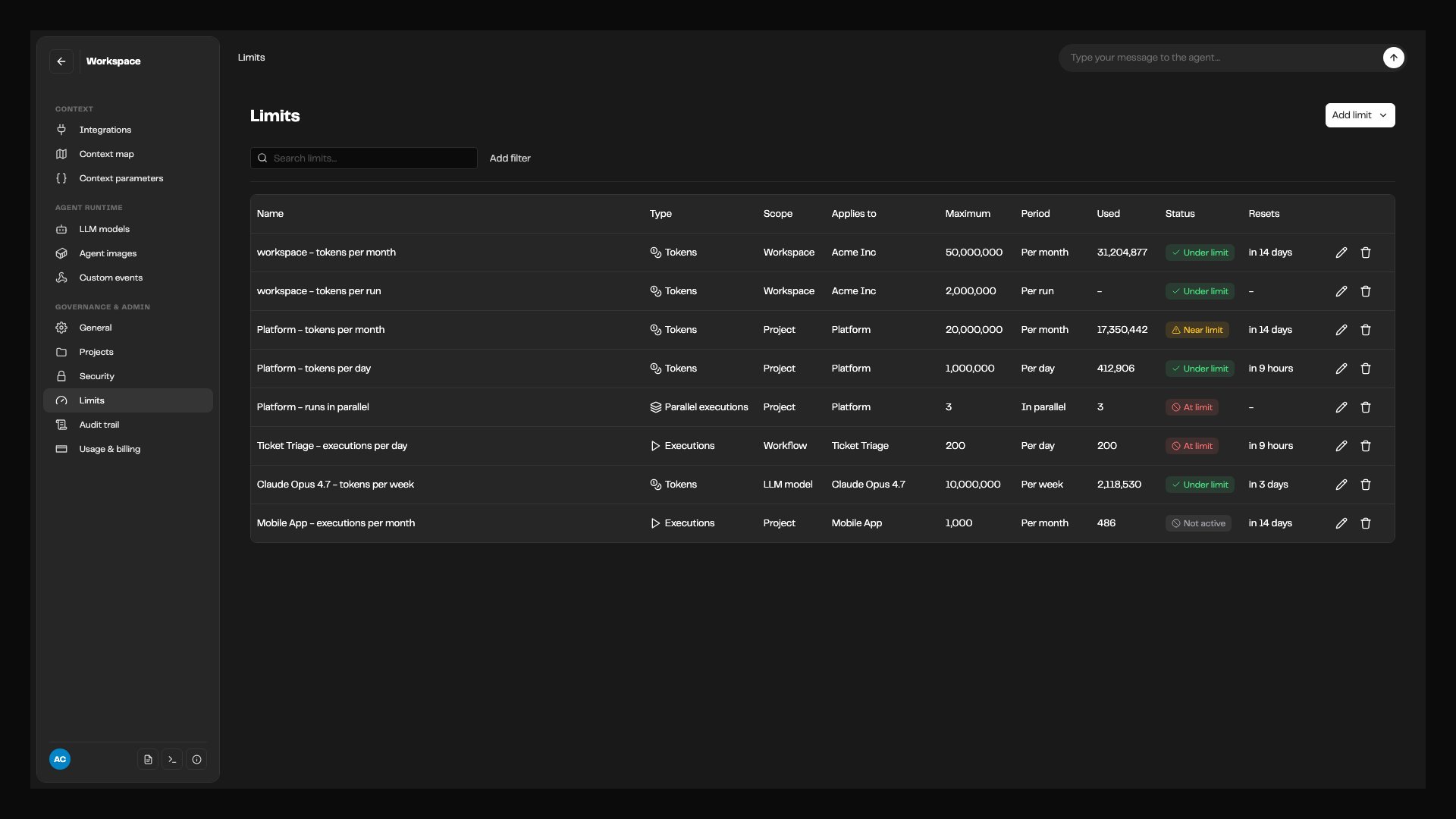
The **Limits** page lists every limit in the workspace in one table:
| Column | Shows |
| - | - |
| **Name** | The limit's name. Overcut names a new limit after what it limits; you can rename it when you edit it. |
| **Type** | **Tokens**, **Executions**, or **Parallel executions**. |
| **Scope** | Workspace, Project, Workflow, or LLM model. |
| **Applies to** | The project, workflow, or model the limit is set on. |
| **Maximum** | The ceiling. |
| **Period** | **Per day**, **Per week**, **Per month**, **Per run**, or **In parallel**. |
| **Used** | Usage in the current window. |
| **Status** | Where the limit stands, described below. |
| **Resets** | When the current window ends. |
Each limit shows one of these statuses:
| Status | Meaning |
| - | - |
| **Under limit** | There is room left. |
| **Near limit** | Usage has passed the limit's warning percentage. |
| **At limit** | The limit is full. New runs it covers are refused or held. |
| **Not active** | The limit is turned off and not enforced. |
| **Usage unavailable** | Overcut could not read current usage. The limit is still listed with its maximum. |
Use **Search limits** and the filters above the table to narrow a long list, for example to every limit that is **At limit**.
### Limits on a project or workflow
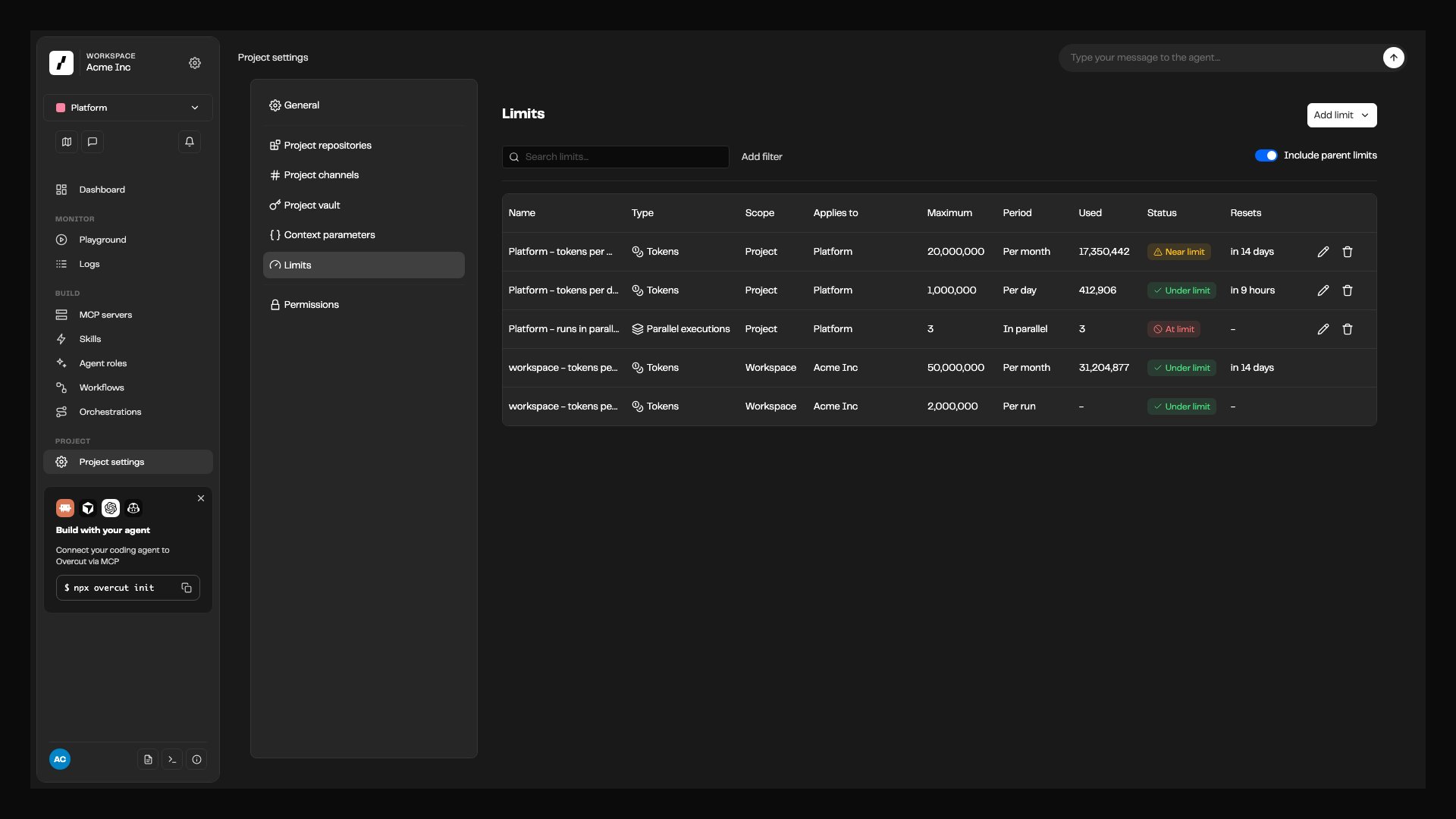
To see the limits for one project, open **Project settings** and select the **Limits** tab. For one workflow, open the workflow and select its **Limits** tab, next to **History**.
These tabs list only the limits set on that project or workflow. Turn on **Include parent limits** to also see the limits that apply from above: the workspace's limits, and for a workflow, its project's limits too. Parent limits are shown read-only here. To change one, use the workspace **Limits** page, where you can see everything it affects.
## What you can limit
Every limit counts one of three things:
| Kind | What it counts |
| - | - |
| **Tokens** | Total tokens your runs use across LLM calls, the same figure shown as **Total Tokens** in [Token Usage Analytics](/docs/workflows/token-usage-analytics). |
| **Executions** | Workflow runs in the period. Skipped runs, including runs a limit refused, do not count. |
| **Executions in parallel** | Runs of a project that are going at the same moment. |
A limit counts either over a time period (per day, per week, or per month) or for each run on its own. The combinations Overcut offers:
| Limit | Workspace | Project | Workflow | LLM model |
| - | - | - | - | - |
| Tokens per day, week, or month | Yes | Yes | Yes | Yes |
| Tokens per run | Yes | Yes | Yes | No |
| Executions per day, week, or month | No | Yes | Yes | No |
| Executions in parallel | Set by your plan | Yes | No | No |
A few patterns these combinations support:
* **A monthly budget per team.** Give each team's project a monthly token limit, so one team's heavy month does not eat into another's.
* **A runaway guard on one workflow.** A daily token or execution limit on a workflow contains a webhook storm or a trigger loop without starving the rest of its project.
* **A cap on any single run.** A per-run token limit on the workspace stops any run, in any project, that grows far beyond what a run of that kind should cost.
* **A budget per model.** A monthly token limit on an expensive LLM model caps its spend while cheaper models stay available.
* **A fair share of capacity.** A parallel limit on a project keeps it from taking every slot your plan allows.
The workspace-wide limit on parallel runs comes from your subscription plan, not from this page. It is not listed on the **Limits** page. See [Workspace-level Concurrency Limits](/docs/workflows/workflow-execution-control#workspace-level-concurrency-limits).
## How limits combine
**Every limit that covers a run applies, and the tightest one wins.** A run of a workflow is covered by the workspace's limits, its project's limits, and the workflow's own. A narrower limit can tighten a wider one but cannot loosen it: a project limit of 50M tokens a month does not let that project spend past a workspace limit of 20M.
**One subject can have several windows.** A project can have both 1M tokens per day and 20M tokens per month. The daily limit guards against a burst, and the monthly limit sets the budget. Each window counts and resets on its own.
**Windows follow your workspace timezone.** A day runs midnight to midnight, a week runs Sunday to Sunday, and a month runs from the 1st to the 1st, all in the timezone set in [Workspace Settings](/docs/reference/workspace-settings). Reset times on the **Limits** page and in run messages use that timezone.
**A new limit starts counting from when you create it.** Usage from earlier in the current window does not count toward it.
## What happens when a limit is reached
What Overcut does depends on the kind of limit and on whether the run has already started:
| Situation | Run status | What happens |
| - | - | - |
| A day, week, or month limit is already full when the run is triggered | **Skipped** | The run never starts. Trigger it again once the window resets or the limit is raised. |
| A project's parallel limit is full | **On Hold** | The run waits and starts automatically when another run in that project finishes. |
| A run passes a per-run token limit | **Failed** | The run is stopped partway through. |
| A token limit for a day, week, or month fills up while the run is going | **Failed** | The run is stopped partway through. |
Every one of these runs carries a message that names the limit, how much is used, and when it resets. For example:
> This run was stopped by a usage limit. Project Core Platform has used 20,000,000 of 20,000,000 tokens, resets 2026-11-01. Trigger it again once there is room, or raise the limit.
When several limits are full at once, a run that never started names all of them, so you know everything you would need to raise for it to run.
### Runs on hold
A run held by a project's parallel limit keeps its trigger payload, so nothing is lost and you do not need to trigger it again. Its message reads, for example, "Project Core Platform has 3 of 3 runs going. This run will start when one finishes." Held runs are released oldest first, and only when both the project's limit and your plan's workspace limit have room. See [On Hold Release Cycle](/docs/workflows/workflow-execution-control#on-hold-release-cycle).
### Runs stopped partway through
A run stopped by a token limit is not cut off mid-step. Agent steps finish the operation they are on, steps that have not started are canceled, and anything still running after a few minutes is stopped. Work the run finished before the stop, and the tokens it spent, still count.
How close a run gets to its limit before it stops depends on the agent engine. With the Overcut engine, usage is reported after every LLM call, so a run stops within about one call of the limit. With the Claude engine, usage is reported when each agent step finishes, so a run can pass the limit by up to one step's worth of tokens before it stops. See [Execution Engines](/docs/concepts/execution-engines).
### LLM model limits
Overcut does not know which models a run will call before it starts, so a model's token limit is not checked when a run is triggered. It is checked each time a run calls that model. A run that calls a model whose limit is full is stopped at that point.
### Runs that limits never stop
* **Orchestration supervisor runs** are exempt from usage limits, so a supervisor can always escalate a work item to a person. See [Orchestrations](/docs/orchestrations/overview).
* **If Overcut cannot check a limit**, the run goes ahead. A failed check never stops your whole workspace. On the **Limits** page, usage that cannot be read shows as **Usage unavailable** rather than as zero.
## View limits
The **Limits** page lists every limit in the workspace in one table:
| Column | Shows |
| - | - |
| **Name** | The limit's name. Overcut names a new limit after what it limits; you can rename it when you edit it. |
| **Type** | **Tokens**, **Executions**, or **Parallel executions**. |
| **Scope** | Workspace, Project, Workflow, or LLM model. |
| **Applies to** | The project, workflow, or model the limit is set on. |
| **Maximum** | The ceiling. |
| **Period** | **Per day**, **Per week**, **Per month**, **Per run**, or **In parallel**. |
| **Used** | Usage in the current window. |
| **Status** | Where the limit stands, described below. |
| **Resets** | When the current window ends. |
Each limit shows one of these statuses:
| Status | Meaning |
| - | - |
| **Under limit** | There is room left. |
| **Near limit** | Usage has passed the limit's warning percentage. |
| **At limit** | The limit is full. New runs it covers are refused or held. |
| **Not active** | The limit is turned off and not enforced. |
| **Usage unavailable** | Overcut could not read current usage. The limit is still listed with its maximum. |
Use **Search limits** and the filters above the table to narrow a long list, for example to every limit that is **At limit**.
### Limits on a project or workflow
To see the limits for one project, open **Project settings** and select the **Limits** tab. For one workflow, open the workflow and select its **Limits** tab, next to **History**.
These tabs list only the limits set on that project or workflow. Turn on **Include parent limits** to also see the limits that apply from above: the workspace's limits, and for a workflow, its project's limits too. Parent limits are shown read-only here. To change one, use the workspace **Limits** page, where you can see everything it affects.
 ## Add a limit
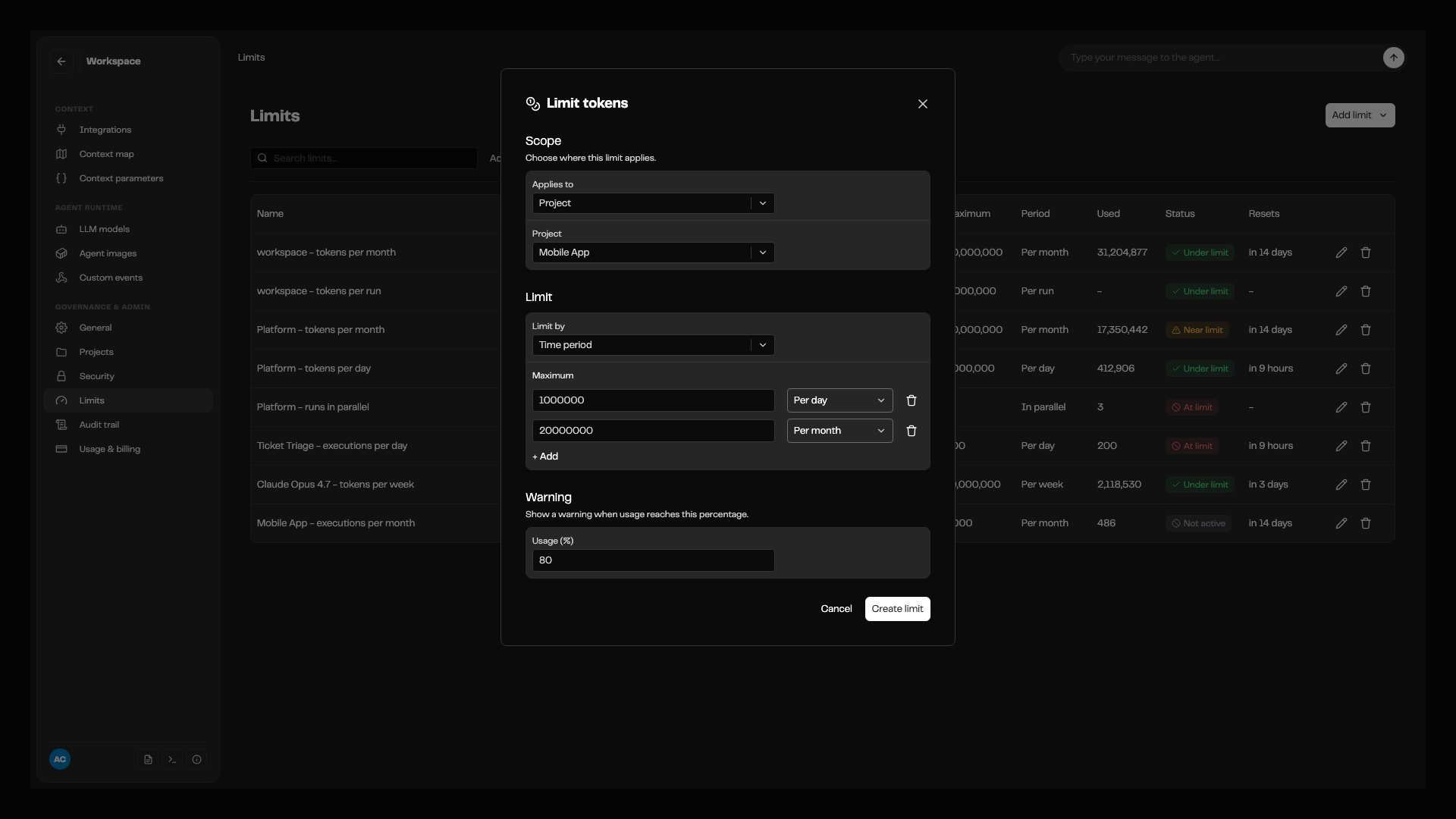 On the **Limits** page, select **Add limit**, then choose **Limit tokens**, **Limit executions**, or **Limit parallel executions**.
Under **Scope**, set **Applies to**: the workspace, a project, a workflow, or an LLM model, depending on what the kind of limit allows. Then pick the project, workflow, or model. Only models connected to your workspace are listed.
For tokens, choose **Limit by**: **Time period** to count over a day, week, or month, or **Each run** to cap a single run. Enter the **Maximum**. To add another window to the same limit, such as a daily maximum next to a monthly one, select **+ Add**.
For a limit over a time period, enter a **Usage (%)** under **Warning**, between 1 and 99. When usage passes that percentage, the limit shows as **Near limit**.
Select **Create limit**. The limit takes effect on the next run it covers.
Adding a limit from a project's or workflow's **Limits** tab works the same way, with the scope fixed to that project or workflow.
The warning percentage only changes how the limit is shown on the **Limits** page. Overcut does not send emails or other notifications when a limit is near or reached.
### Overlapping limits
The form warns you when a number you enter can never take effect, and still lets you save. This happens when:
* A narrower window is set at or above a wider one on the same subject. A daily limit of 30M next to a monthly limit of 20M can never be reached, because the monthly limit always stops runs first.
* A limit is set above a limit on a scope that contains it. A project limit of 50M tokens a month has no effect under a workspace limit of 20M a month.
Overlapping limits are valid. A redundant limit can be deliberate, for example to keep a project's budget in place while a workspace limit is temporarily lower.
## Edit, turn off, or remove a limit
Select the edit icon on a limit's row to open **Edit limit**. You can change the maximum, the warning percentage, the name (**Limit name**), and whether the limit is on (**This limit is on**). Save with **Save limit**.
What a limit applies to and what it counts cannot be changed after it is created. To limit something else, add a new limit and remove the old one.
Raising a full limit, or turning it off, lets new runs start right away. It does not restart runs that were already refused; trigger those again.
To delete a limit, select the remove icon on its row and confirm **Remove this limit?**.
## Permissions
| Permission | Allows |
| - | - |
| `usageLimit.read` | View limits on the **Limits** page and on project and workflow **Limits** tabs |
| `usageLimit.edit` | Add, edit, turn off, and remove limits |
The **Admins** role has both. Other roles do not have them until you grant them under **Security** > **Roles**, since how much a workspace spends is usually an administrative concern. The **Limits** entry is always visible in the sidebar.
Every change to a limit is recorded in the [Audit Trail](/docs/reference/audit-trail) under the **Usage limit** entity type, with the before and after values.
## Related
* [Token Usage Analytics](/docs/workflows/token-usage-analytics): see where tokens go before you decide where to cap them.
* [Workflow Execution Control](/docs/workflows/workflow-execution-control): queuing, locking, and your plan's limit on parallel runs.
* [Audit Trail](/docs/reference/audit-trail): review who changed a limit and when.
* [LLM Models](/docs/reference/llm-models): the models you can budget per model.
* [Multi-Project Workspaces](/docs/concepts/multi-project-workspaces): how projects divide a workspace between teams.
This documentation is built and hosted on [Mintlify](https://mintlify.com), a developer documentation platform.
On the **Limits** page, select **Add limit**, then choose **Limit tokens**, **Limit executions**, or **Limit parallel executions**.
Under **Scope**, set **Applies to**: the workspace, a project, a workflow, or an LLM model, depending on what the kind of limit allows. Then pick the project, workflow, or model. Only models connected to your workspace are listed.
For tokens, choose **Limit by**: **Time period** to count over a day, week, or month, or **Each run** to cap a single run. Enter the **Maximum**. To add another window to the same limit, such as a daily maximum next to a monthly one, select **+ Add**.
For a limit over a time period, enter a **Usage (%)** under **Warning**, between 1 and 99. When usage passes that percentage, the limit shows as **Near limit**.
Select **Create limit**. The limit takes effect on the next run it covers.
Adding a limit from a project's or workflow's **Limits** tab works the same way, with the scope fixed to that project or workflow.
The warning percentage only changes how the limit is shown on the **Limits** page. Overcut does not send emails or other notifications when a limit is near or reached.
### Overlapping limits
The form warns you when a number you enter can never take effect, and still lets you save. This happens when:
* A narrower window is set at or above a wider one on the same subject. A daily limit of 30M next to a monthly limit of 20M can never be reached, because the monthly limit always stops runs first.
* A limit is set above a limit on a scope that contains it. A project limit of 50M tokens a month has no effect under a workspace limit of 20M a month.
Overlapping limits are valid. A redundant limit can be deliberate, for example to keep a project's budget in place while a workspace limit is temporarily lower.
## Edit, turn off, or remove a limit
Select the edit icon on a limit's row to open **Edit limit**. You can change the maximum, the warning percentage, the name (**Limit name**), and whether the limit is on (**This limit is on**). Save with **Save limit**.
What a limit applies to and what it counts cannot be changed after it is created. To limit something else, add a new limit and remove the old one.
Raising a full limit, or turning it off, lets new runs start right away. It does not restart runs that were already refused; trigger those again.
To delete a limit, select the remove icon on its row and confirm **Remove this limit?**.
## Permissions
| Permission | Allows |
| - | - |
| `usageLimit.read` | View limits on the **Limits** page and on project and workflow **Limits** tabs |
| `usageLimit.edit` | Add, edit, turn off, and remove limits |
The **Admins** role has both. Other roles do not have them until you grant them under **Security** > **Roles**, since how much a workspace spends is usually an administrative concern. The **Limits** entry is always visible in the sidebar.
Every change to a limit is recorded in the [Audit Trail](/docs/reference/audit-trail) under the **Usage limit** entity type, with the before and after values.
## Related
* [Token Usage Analytics](/docs/workflows/token-usage-analytics): see where tokens go before you decide where to cap them.
* [Workflow Execution Control](/docs/workflows/workflow-execution-control): queuing, locking, and your plan's limit on parallel runs.
* [Audit Trail](/docs/reference/audit-trail): review who changed a limit and when.
* [LLM Models](/docs/reference/llm-models): the models you can budget per model.
* [Multi-Project Workspaces](/docs/concepts/multi-project-workspaces): how projects divide a workspace between teams.
This documentation is built and hosted on [Mintlify](https://mintlify.com), a developer documentation platform.